

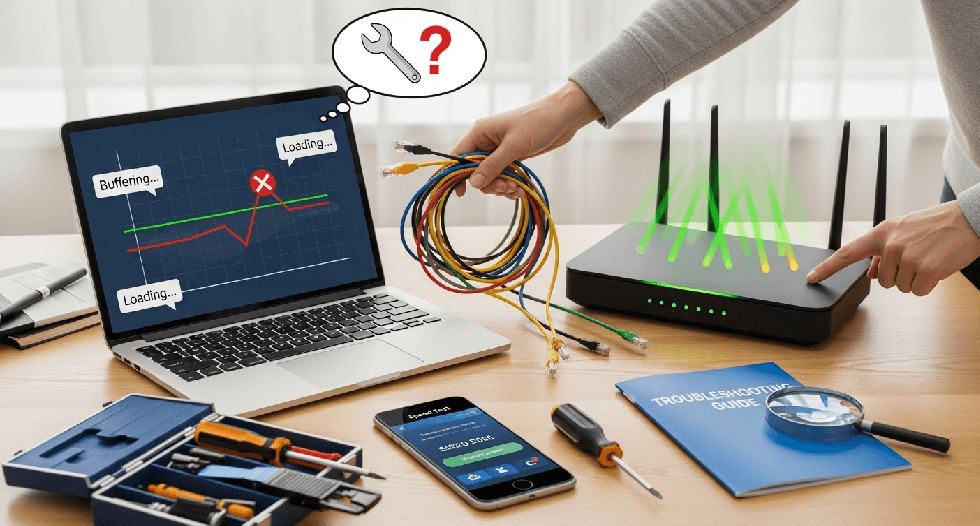
Learning how to fix a slow internet connection is essential when buffering ruins your movie night or lag kills your gaming session.
Don’t panic—most connectivity issues are simple to resolve. Below, we’ll walk you through 15 proven steps to boost your speed and stability instantly.
- First: Diagnose the Problem (Don’t Skip This!)
- How To Fix a Slow Internet Connection: 15 Ways to Boost Speed
- 1. Power Cycle Your Hardware (Restart)
- 2. Remove Unnecessary Coaxial Splitters
- 3. Move Your Router to a Central Location
- 4. Switch Frequency Bands (2.4GHz vs. 5GHz)
- 5. Change Your Wi-Fi Channel to Reduce Interference
- 6. Use an Ethernet Cable (And Check the Category)
- 7. Check for Bandwidth Hogs
- 8. Optimize Your Web Browser
- 9. Update Your Router’s Firmware
- 10. Enable Quality of Service (QoS) Settings
- 11. Test for “Bufferbloat”
- 12. Change Your DNS Server
- 13. Scan for Malware
- 14. Upgrade Your Equipment (Mesh Wi-Fi)
- 15. Contact Your ISP
- Frequently Asked Questions (FAQ)
- Conclusion
First: Diagnose the Problem (Don’t Skip This!)
Before you start unplugging cables, you need to establish a baseline. You cannot fix what you do not measure.
Go to a reputable speed testing site like Speedtest.net by Ookla or Fast.com and run a test. Pay attention to three metrics:
- Download Speed: How fast content loads (vital for Netflix/YouTube).
- Upload Speed: How fast you send data (vital for Zoom/Gaming).
- Ping (Latency): The reaction time of your connection. If this is over 100ms, your internet will feel sluggish even if download speeds are high.
If your results are significantly lower than what you pay for, proceed to the troubleshooting steps below.
How To Fix a Slow Internet Connection: 15 Ways to Boost Speed
We have ordered these solutions from the easiest (and free) fixes to the more advanced technical adjustments.
1. Power Cycle Your Hardware (Restart)
It sounds like a cliché, but “turning it off and on again” is the most effective way to clear cache issues and memory leaks that bog down your hardware.
The correct way to do it:
- Unplug the power cord from both your modem and router.
- Wait at least 30 seconds to ensure all capacitors drain completely.
- Plug the modem back in and wait for the lights to stabilize.
- Plug the router in and wait for it to boot up.
2. Remove Unnecessary Coaxial Splitters
If you have cable internet, check the coaxial cable coming out of your wall. Is there a small metal “splitter” attaching it to your modem? These are often leftovers from old Cable TV setups.
Every time you split a line, you degrade the signal strength (dB). A bad splitter can cause uncorrectable errors on your modem line.
If you don’t need the splitter for a TV, remove it and screw the coaxial cable directly into the modem to improve signal integrity.
3. Move Your Router to a Central Location
Wi-Fi signals are radio waves, and they struggle to penetrate solid objects. If your router is hidden in a closet, behind a TV, or in the basement, you are sabotaging your own signal.
For the best performance, place your router in a central, elevated location. Avoid placing it near:
- Thick concrete or brick walls.
- Large metal appliances (fridges, microwaves).
- Fish tanks (water blocks Wi-Fi signals).
4. Switch Frequency Bands (2.4GHz vs. 5GHz)
Most modern routers are “dual-band,” meaning they broadcast two different Wi-Fi networks.
- 2.4GHz: Better for range and penetrating walls, but slower speeds.
- 5GHz: Much faster speeds, but shorter range.
If you are sitting relatively close to your router, ensure your device is connected to the 5GHz band. This simple switch can often double your speed instantly.
5. Change Your Wi-Fi Channel to Reduce Interference
While switching bands helps speed, changing Channels helps with traffic jams. If you live in an apartment complex, your neighbors’ routers might be broadcasting on the same channel as yours, causing signal collisions.
Log into your router settings and switch your 2.4GHz channel to 1, 6, or 11. These are non-overlapping channels that typically offer the clearest path for your data.
6. Use an Ethernet Cable (And Check the Category)
Wi-Fi will always be convenient, but a wired connection is king for speed. Wireless signals are subject to interference from your neighbor’s Wi-Fi, baby monitors, and even bluetooth devices.
Critical Check: Look at the text printed on the side of your Ethernet cable.
- Cat 5: Obsolete. Capable of only 100 Mbps. If you have a Gigabit plan, this cable is your bottleneck.
- Cat 5e or Cat 6: Capable of 1 Gbps+. Use these.
Replacing an old Cat 5 cable with a Cat 6 Ethernet cable is often the cheapest way to fix slow speeds instantly.
7. Check for Bandwidth Hogs
Sometimes your internet isn’t broken; it’s just busy. Background applications can consume your entire bandwidth without you realizing it.
Check for these common culprits:
- Cloud Backups: Are Dropbox or OneDrive syncing large files?
- Software Updates: Is Windows or a game console downloading a massive patch?
- Streaming: Is someone in the other room streaming 4K video?
Pause these activities and run your speed test again to see if performance improves.
8. Optimize Your Web Browser
If your speed test says your internet is fast, but websites are loading slowly, the culprit is likely your browser, not your connection.
- Clear Cache: Accumulated cookies and cached images can bloat Chrome or Safari. Clear your browsing data.
- Disable Extensions: Running too many ad-blockers or privacy extensions simultaneously can slow down page rendering.
- Update Browser: Ensure you are running the latest version of your browser for security and speed patches.
9. Update Your Router’s Firmware
Just like your phone needs iOS or Android updates, your router needs firmware updates to patch security holes and improve performance efficiency.
Log into your router’s admin panel (usually found at 192.168.0.1 or 192.168.1.1—check the sticker on your router) and look for an “Update” or “Firmware” section. An outdated router is often a slow router.
10. Enable Quality of Service (QoS) Settings
Quality of Service (QoS) is an advanced router feature that lets you prioritize specific traffic. For example, if you are a gamer, you can tell your router to prioritize your Xbox or PC over someone else’s Netflix stream.
- Log into your router admin panel.
- Find the QoS tab.
- Set your critical devices (work laptop or console) to “High Priority.” This ensures your connection remains stable even when the network is busy.
11. Test for “Bufferbloat”
If your speed is fast but you still experience “lag” in games or “choppy” video calls, you might have Bufferbloat. This happens when your router tries to buffer too much data at once, causing a traffic jam on the network.
Run a specific test at Waveform.com. If you score a “C” or lower, enabling QoS (Step 10) is mandatory to fix this hidden latency issue.
12. Change Your DNS Server
Your ISP assigns you a default Domain Name System (DNS) server, which acts as the internet’s phonebook. ISP-provided DNS servers can be slow or unreliable.
Switching to a public, high-speed DNS can make browsing feel snappier.
- Google Public DNS: 8.8.8.8 and 8.8.4.4
- Cloudflare DNS: 1.1.1.1
Detailed instructions on changing these settings can be found on Google’s Developers Guide.
13. Scan for Malware
If your internet is slow on only one device, you might be infected with malware. Malicious software can run in the background, using your internet connection to transmit data or participate in a botnet. Run a deep scan using reputable antivirus software to rule this out.
14. Upgrade Your Equipment (Mesh Wi-Fi)
If you are using the default router provided by your ISP 5 years ago, it likely supports older Wi-Fi standards (like Wi-Fi 4 or 5).
Consider upgrading to a Wi-Fi 6 Router or, if you have a large home, a Mesh Wi-Fi System. Unlike simple “extenders” that halve your bandwidth, Mesh systems use multiple nodes to blanket your home in high-speed coverage.
15. Contact Your ISP
If you have tried everything above and are still wondering how to fix a slow internet connection, the issue might be on your provider’s end.
Contact your ISP and ask:
- Is there an outage in my area?
- Am I being throttled? (Some ISPs slow you down if you exceed a data cap).
- Is my modem outdated? (They may replace it for free).
Frequently Asked Questions (FAQ)
This often indicates high latency or packet loss. While your raw throughput (Mbps) is high, the time it takes for data to travel back and forth is too long. This can also be caused by a slow DNS server or browser extensions clogging your memory.
Yes, usually. A Virtual Private Network (VPN) encrypts your data and routes it through a remote server, which adds physical distance and processing time. If you need speed, try temporarily disabling your VPN.
This is known as “network congestion.” Internet cable lines are shared with your neighbors. During “peak hours” (usually 7 PM to 11 PM), everyone is streaming and gaming simultaneously, which can slow down the local node.
Conclusion
Don’t let lag dictate your digital life. Now that you understand the mechanics of your network and how to fix a slow internet connection, start with the simple router reboot and work your way down the list to more advanced checks like removing splitters or testing for bufferbloat.
If this guide helped you speed up your network, share your results in the comments below!

IT Security / Cyber Security Experts.
Technology Enthusiasm.
Love to read, test and write about IT, Cyber Security and Technology.
The Geek coming from the things I love and how I look.