

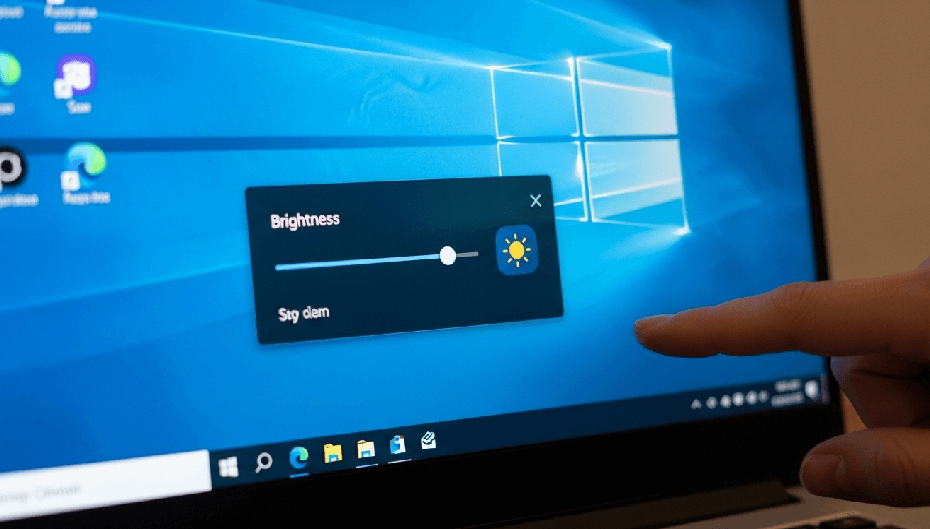
Are you struggling to adjust display brightness settings easily windows PC users often need to tweak for comfortable eye viewing?
Whether your screen is blindingly bright or your slider vanished, this complete guide fixes your display fast.
Quick Answer: How to Adjust Display Brightness Instantly
To change screen brightness in seconds, follow below steps:
- Press Win + A on your keyboard to launch the Quick Settings panel (Windows 11) or Action Center (Windows 10)
- Next, click and drag the Sun slider at the bottom left or right.
- Alternatively, press Win + I to open Settings, navigate to System > Display, and adjust the Brightness slider.
Quick Reference Matrix: Finding the Right Method
| Target Device / Scenario | Recommended Method | Shortcut / Access Path | Primary Feature |
|---|---|---|---|
| Windows 11 Laptop | Quick Settings Menu | Win + A | Fast system tray access |
| Windows 10 Laptop | Action Center Slider | Win + A or Battery Icon | Immediate slider control |
| All Windows Laptops | Hardware Function Keys | Fn + Brightness Key | Direct keyboard adjustment |
| Smart Laptops | Presence Sensing Control | Win + I →→ Absence Dimming | Dims screen when looking away |
| HDR Displays | SDR Content Brightness | Win + I →→ Display →→ HDR | Balances non-HDR app brightness |
| Power & Battery | Power Plan Dimming | Win + I →→ Power & Battery | Prevents auto-dimming on battery |
| Desktop PCs (External) | Physical OSD / Apps | Monitor buttons or Twinkle Tray | Hardware-level DDC/CI control |
| Legacy Windows Access | Windows Mobility Center | Win + X →→ Mobility Center | Mobile center dashboard |
| Automated / IT Admin | PowerShell (WMI) | Get-CimInstance Script | Command-line luminance control |
How to Adjust Display Brightness Settings Easily on Windows
Method 1: Adjust Brightness via Quick Settings or Action Center (Win + A)
If you want to adjust display brightness settings easily windows 11 and Windows 10 provide an integrated system tray popup that requires only two clicks.
- Press Win + A on your keyboard. This opens the Quick Settings panel in Windows 11 or the Action Center in Windows 10.
- Locate the slider marked with a Sun icon at the bottom of the flyout menu.
- Click and drag the slider to the right to brighten your display, or drag it to the left to dim your screen.


Tip: If you do not see the slider in Windows 11, click the Pencil icon (Edit quick settings), click Add, select Brightness, and press Done.
Method 2: Change Brightness Through Windows System Settings (Win + I)
When you need granular control over auto-brightness features, use the main Settings app. For official documentation on built-in display features, refer to Microsoft Support’s Display Guide.
- Press Win + I to open the Windows Settings window.
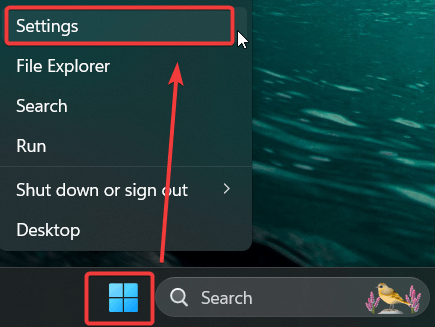
- Click System in the left sidebar, then select Display on the right side.

- Locate the Brightness slider under the Brightness & color section.
- Drag the slider to set your preferred screen luminosity.
- Furthermore, expand the Brightness dropdown menu and uncheck “Change brightness automatically when lighting changes” if you want to prevent sudden light fluctuations caused by ambient sensors.

Method 3: Manage Windows 11 Presence Sensing (Smart Attention Dimming)
Modern Windows 11 laptops (Surface, Dell XPS, Lenovo ThinkPad, HP Spectre) feature time-of-flight (ToF) sensors that monitor whether you are looking at the screen. If your display randomly dims while working, this feature may be active:
- Press Win + I and navigate to System > Presence sensing (or Privacy & security > Presence sensing).
- Look for Adaptive Dimming or Dim when I look away.
- Toggle the feature Off if you prefer constant screen brightness regardless of your eye gaze.
Method 4: Adjust SDR Content Brightness on HDR Monitors
If you enable High Dynamic Range (HDR) in Windows 11 or Windows 10, the standard display slider may freeze or lock at 100%. To adjust standard desktop elements without disabling HDR:
- Press Win + I to open Settings, then go to System > Display.
- Click on HDR (or Windows HD Color settings in Windows 10).
- Scroll down to find the SDR content brightness slider.
- Drag the slider to adjust the brightness balance for standard apps, web browsers, and desktop icons while keeping HDR active for videos and games.
Method 5: Use Keyboard Function Keys (Fn Shortcuts)
Most laptop manufacturers include dedicated hotkeys on the top function row (F1–F12). These keys allow you to alter screen lighting instantly without opening software menus.
Hold down the Fn key on the lower-left corner of your keyboard while pressing the corresponding function key:
- Dell Laptops: Fn + F11 (Decrease) / Fn + F12 (Increase)
- HP Laptops: Fn + F2 (Decrease) / Fn + F3 (Increase)
- Lenovo Laptops: Fn + F5 (Decrease) / Fn + F6 (Increase)
- ASUS Laptops: Fn + F7 (Decrease) / Fn + F8 (Increase)
Method 6: Configure Power Options & Battery Saver Auto-Dimming
Does your laptop screen automatically dim the moment you unplug your AC adapter? You can configure Windows to maintain steady brightness on battery power.
- Press Win + I and navigate to System > Power & battery.
- Click Battery saver to expand its options.
- Toggle off “Lower screen brightness when using battery saver”.
- Furthermore, on Windows 10, open the legacy Control Panel by pressing Win + R, typing control powercfg.cpl, and hitting Enter.
- Click Change plan settings next to your active power plan and set your preferred Plan brightness levels for both On battery and Plugged in states.
Method 7: Adjust Brightness on Desktop PCs & External Monitors
When attempting to adjust display brightness settings easily windows software alone cannot always control external desktop monitors due to hardware communication limits. If your settings slider is missing on a desktop setup, choose one of these solutions:
Option A: Use Physical Monitor Buttons (OSD Menu)
Press the Menu or Joystick button on the back or bottom bezel of your monitor. Navigate the On-Screen Display (OSD) menu to Picture or Brightness, then adjust the percentage manually.
Option B: Use Your Graphics Control Panel
- Right-click any open space on your desktop and select NVIDIA Control Panel, Intel Graphics Command Center, or AMD Radeon Software.
- If you use Intel hardware, verify you have the latest software installed from Intel’s Official Driver Hub.
- Navigate to Display > Adjust Desktop Color Settings.
- Move the software Brightness slider to adjust screen output.
Option C: Use Third-Party DDC/CI Software (Twinkle Tray)
If you want a software slider in your taskbar for external screens, download Twinkle Tray via the Microsoft Store. This lightweight utility sends DDC/CI commands to your monitor so you can control desktop screens directly from the system tray.
OLED & Mini-LED Hardware Note (ABL Warning): If you use an OLED monitor or Mini-LED display, you may notice the screen dimming automatically when opening a full-screen white document (e.g., Microsoft Word). This is caused by Auto Brightness Limiter (ABL)—a hardware-level protection built into OLED panels to prevent overheating and panel burn-in. It is not a Windows software bug.
Method 8: Adjust Brightness via Windows Mobility Center
For legacy Windows users or quick dashboard access, the Mobility Center provides an all-in-one control hub.
- Press Win + X on your keyboard to launch the Power User menu.
- Select Mobility Center from the list (or press Win + R, type mblctr, and hit Enter).

- Move the Display Brightness slider inside the first tile.

Method 9: Change Brightness Using PowerShell or Command Line (Advanced)
For sysadmins, script developers, or power users who want to automate screen brightness adjustments without a graphical interface:
- Right-click the Start button and select Terminal (Admin) or PowerShell (Admin).
- To check your current screen brightness level, paste the following command and press Enter:
(Get-CimInstance -Namespace root/wmi -ClassName WmiMonitorBrightness).CurrentBrightness
- To set your brightness to 50% (or any value from 0 to 100), execute the following command:
(Get-CimInstance -Namespace root/wmi -ClassName WmiMonitorBrightnessMethods).WmiSetBrightness(1, 50)
Troubleshooting: How to Fix a Missing or Grayed-Out Brightness Slider
If your brightness slider suddenly disappears or turns gray, your display drivers are likely disabled or outdated.
codeCode
Step 1: Emergency Graphics Driver Reset Hotkey
If your slider freezes or stops responding after waking your laptop from sleep, restart the graphics subsystem without rebooting your PC:
- Press Win + Ctrl + Shift + B.
- Your screen will flicker briefly and beep. This restarts your GPU display driver stack and restores frozen brightness sliders instantly.
Step 2: Re-enable Your Display Adapter
- Right-click the Start button and select Device Manager.
- Expand the Display adapters section.
- Right-click your active graphics card (e.g., Intel UHD, NVIDIA GeForce).
- If the menu option reads Enable device, click it. If it is already enabled, select Update driver and choose Search automatically for drivers.
Step 3: Reset the Generic PnP Monitor Driver
- In Device Manager, expand the Monitors section.
- Right-click Generic PnP Monitor and select Disable device.
- Wait 5 seconds, right-click Generic PnP Monitor again, and select Enable device.
- Restart your computer to restore the missing slider.
Step 4: Disable Hidden Intel DPST (Display Power Saving Technology)
If your screen dynamically shifts brightness when switching between dark and bright websites—even though Windows auto-brightness is turned OFF—Intel’s background DPST technology is responsible:
- Open Intel Graphics Command Center.
- Navigate to System > Power.
- Locate Display Power Saving Technology (DPST) and toggle it Off.
- Alternatively, if using older drivers, press Win + R, type regedit, and navigate to:
HKEY_LOCAL_MACHINE\SYSTEM\ControlSet001\Control\Class\{4d36e968-e325-11ce-bfc1-08002be10318}\0000 - Locate the DWORD value FeatureTestControl, change its hexadecimal value to FFFF (or 2400), and restart your PC to permanently disable background dynamic dimming.
Advanced Display Comfort: Night Light & Color Calibration
Adjusting brightness is only half the battle when reducing eye strain. You can also calibrate your monitor’s gamma and color output:
- Enable Night Light: Go to Settings > System > Display, toggle Night Light to On, and click the arrow to set a sunset-to-sunrise schedule.
- Calibrate Display Color (dccw): Press Win + R, type dccw, and press Enter to open the built-in Windows Display Color Calibration Wizard. Follow the on-screen prompts to optimize gamma, contrast, and color balance.
Frequently Asked Questions (FAQs)
Why is my Windows screen brightness slider missing completely?
The default Windows brightness slider relies on built-in laptop screen hardware. If you are using a desktop PC with an external monitor, Windows hides this slider because desktop monitors require physical button adjustments or DDC/CI software like Twinkle Tray.
How do I stop Windows from automatically changing my brightness?
Windows uses Content Adaptive Brightness Control (CABC) and ambient light sensors to dynamically dim your display. To disable this, navigate to Settings > System > Display > Brightness, expand the menu, and uncheck both “Change brightness automatically when lighting changes” and “Help optimize battery by optimizing content shown and brightness.”
What is the fast keyboard shortcut to adjust screen brightness in Windows 11?
Press Win + A to launch the Quick Settings panel, then use your mouse to adjust the brightness slider at the bottom. Alternatively, press your laptop’s designated Fn key along with the corresponding brightness function key (e.g., Fn + F2 or Fn + F12).
Why does my laptop screen dim when I turn my head away?
Your laptop likely features Presence Sensing (Human Presence Detection). You can disable this by navigating to Settings > System > Presence sensing and turning off “Dim when I look away”.
How do I stop dark web pages from making my laptop screen dim automatically?
This behavior is caused by Intel Display Power Saving Technology (DPST). Open the Intel Graphics Command Center, navigate to System > Power, and disable Display Power Saving Technology.
Summary
Learning how to adjust display brightness settings easily windows users can optimize eye comfort, reduce strain, and significantly prolong laptop battery life. Whether you utilize the fast Win + A hotkey, configure automatic sensors in Settings, or use software utilities for external monitors, maintaining proper display lighting is simple once you know where to look.
Did this guide help you restore or adjust your screen brightness? Share this article with friends who might be struggling with display issues, or drop a comment below if you ran into a missing slider problem that needs fixing!

IT Security / Cyber Security Experts.
Technology Enthusiasm.
Love to read, test and write about IT, Cyber Security and Technology.
The Geek coming from the things I love and how I look.