

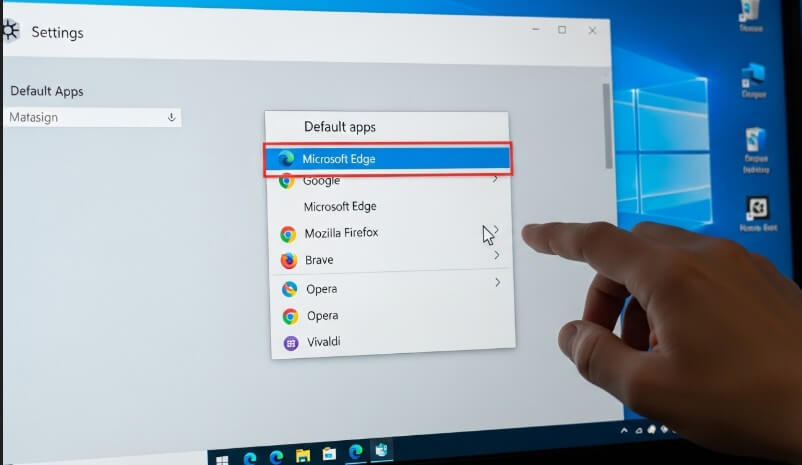
Learning how to change your default web browser windows uses is essential for a seamless, personalized online experience.
Whether you prefer the speed of Chrome, the privacy of Firefox, or a specific niche browser, sticking with the system default can disrupt your workflow. Below is your complete, step-by-step guide to switching settings in seconds.
- Quick Answer: The Fastest Way to Switch
- How to Change Default Browser in Windows 11
- How to Change Default Browser in Windows 10
- Global vs. EEA Users: Understanding Your Rights (DMA)
- How to Set Specific Browsers as Default (Chrome, Firefox, Opera)
- Advanced: Changing Defaults by File Type or Protocol
- How to Pin Your New Browser to the Taskbar
- Does Changing Defaults Affect Windows Copilot?
- Why Does Microsoft Edge Still Open Sometimes?
- Troubleshooting: How to Reset All Default Apps
- Frequently Asked Questions (FAQ)
- Conclusion
Quick Answer: The Fastest Way to Switch
If you are in a rush, here is the immediate solution for most Windows users:
- Press the Windows Key and type “Default Apps.”
- Press Enter to open the Default Apps system setting.
- Scroll or search for your preferred browser (e.g., Google Chrome).
- Windows 11: Click the browser name and hit the Set default button at the top.
- Windows 10: Click the icon under “Web browser” and select your new app from the list.
How to Change Default Browser in Windows 11
Windows 11 manages defaults differently than previous versions. In the past, users had to change file types individually. However, recent updates (including the 22H2 and 2025 feature drops) have reintroduced a “one-click” button to streamline this process.
Follow these steps to ensure every link opens in your preferred browser:
- Open the Start menu and select the Settings gear icon (or press Windows Key + I).
- In the left-hand sidebar, click on Apps.
- Select the Default apps menu from the right-hand pane.
- In the search bar labeled “Set defaults for applications,” type the name of the browser you want to use (e.g., “Firefox” or “Chrome”).
- Click on the browser name when it appears in the list.
- Locate the button at the top of the page that says Set default.
- Click it. You will see the checkmarks next to .htm, .html, HTTP, and HTTPS automatically switch to your chosen browser.
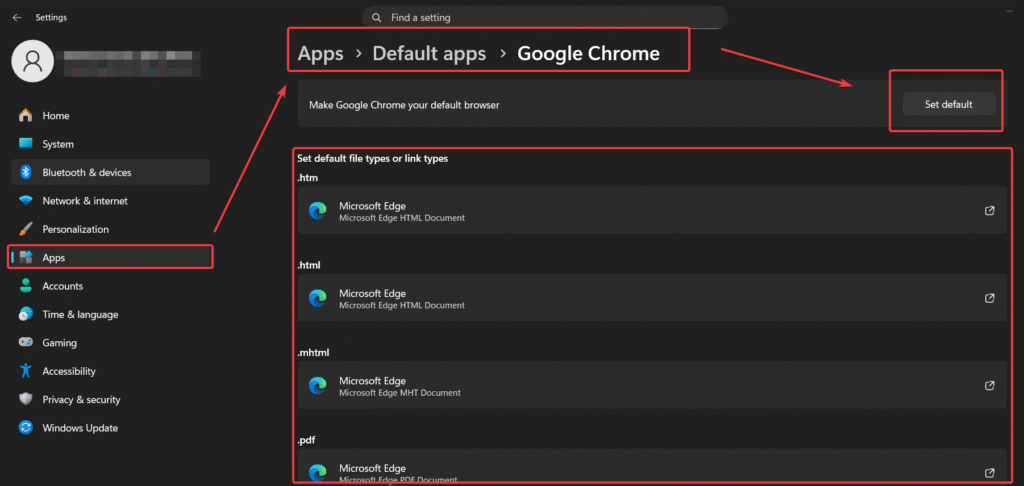
Note: If you do not see the “Set default” button, ensure your Windows 11 is updated to the latest version via Windows Update.
For further troubleshooting on Windows 11 settings, refer to the official Microsoft Support page regarding default apps.
How to Change Default Browser in Windows 10
Windows 10 uses a centralized category system which makes switching slightly different from Windows 11.
- Click the Start button and select the Settings gear icon.
- Click on the Apps tile.
- In the left sidebar, select Default apps.
- Scroll down to the section labeled Web browser. You will likely see “Microsoft Edge” listed there.
- Click on the current browser icon.
- A menu titled “Choose an app” will pop up. Select your desired browser (e.g., Google Chrome, Opera, or Brave) from the list.
- If Windows prompts you to “Try Microsoft Edge,” simply click Switch anyway.
Global vs. EEA Users: Understanding Your Rights (DMA)
This is a unique distinction many guides overlook.
If you are located in the European Economic Area (EEA), your version of Windows 11 adheres to the Digital Markets Act (DMA). This gives you expanded capabilities that users in the US or other regions might not have.
- Uninstalling Edge: EEA users can fully uninstall Microsoft Edge if they wish, preventing it from ever opening.
- Search Providers: You can configure the Windows Search bar (in the Start Menu) to open results directly in your default browser (like Chrome) rather than forcing Edge.
- How to Check: If you are in a compliant region, you will see a “Uninstall” option for Edge in Settings > Apps > Installed Apps, which is greyed out for the rest of the world.
How to Set Specific Browsers as Default (Chrome, Firefox, Opera)
While using Windows Settings is the most reliable method, you can often trigger the change directly from your browser of choice.
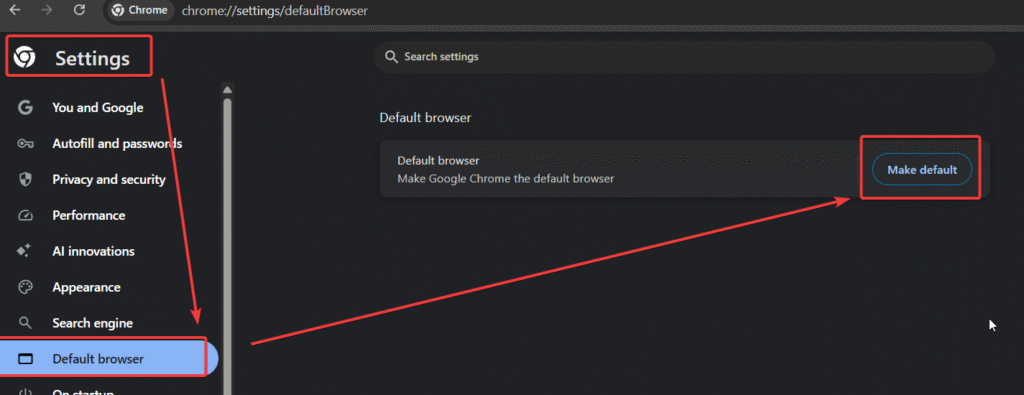
Google Chrome
- Open Chrome.
- Click the three-dot menu in the top-right corner and select Settings.
- Click Default browser in the left sidebar.
- Click the Make default button. This will open the Windows System settings where you must confirm the change using the steps above.
- Download Chrome here.
Mozilla Firefox
- Open Firefox.
- Click the hamburger menu (three lines) and go to Settings.
- Under the General tab, look for the “Startup” section.
- Click Make Default.
- Download Firefox here.
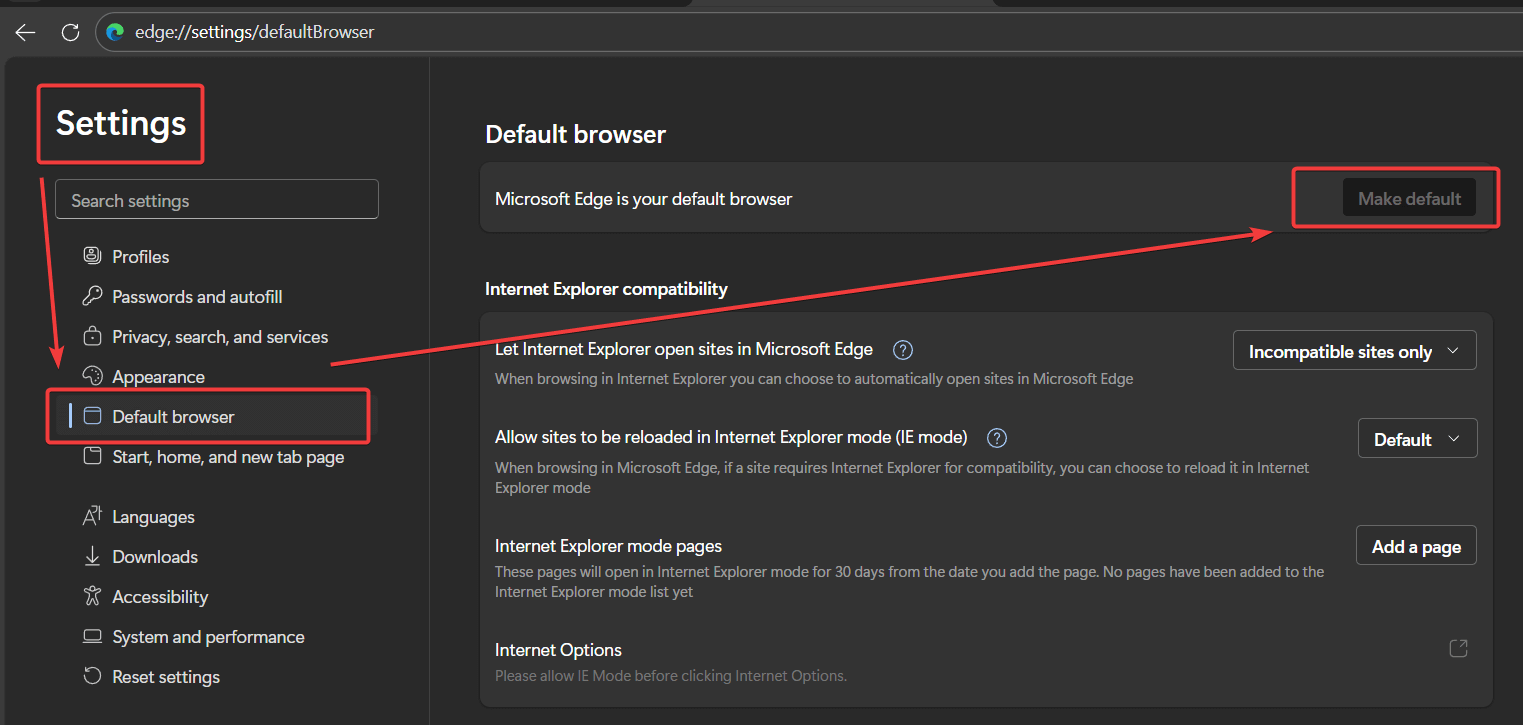
Microsoft Edge
If you want to revert to Microsoft Edge to take advantage of integrated Copilot AI features or better battery efficiency:
- Open Microsoft Edge.
- Click the three-dot menu (…) in the top-right corner.
- Select Settings near the bottom of the list.
- Click on Default browser in the left sidebar.
- Click the Make default button.
- Note: Since Edge is the native browser, Windows typically applies this change instantly without the extra confirmation prompts required for other browsers.
Advanced: Changing Defaults by File Type or Protocol
Sometimes, you may want your main browser to handle websites (HTTP), but you want a different app (like Adobe Acrobat or Edge) to handle PDF files. Windows allows you to control this granularly.
How to Set Defaults by File Type
- Navigate to Settings > Apps > Default Apps.
- Scroll down to the link labeled Choose default apps by file type.
- Locate the file extension you wish to change in the list (e.g., .pdf, .svg, or .webp).
- Click the icon next to the file type and select your preferred application from the popup list.
How to Set Defaults by Protocol
- In the same Default Apps menu, scroll to Choose default apps by protocol.
- Here you can assign specific browsers to handle protocols like MAILTO (email links) or FTP (file transfer).
- Ensure HTTP and HTTPS are set to your primary browser to guarantee all web links open correctly.
How to Pin Your New Browser to the Taskbar
Even after changing the internal default setting, the Microsoft Edge icon often remains pinned to your Taskbar, confusing users. To fully “switch” your experience, you should update your Taskbar shortcuts.
- Open your new browser (e.g., Chrome) so the icon appears on the Taskbar.
- Right-click the icon on the Taskbar.
- Select Pin to taskbar.
- To remove the old browser, Right-click the Microsoft Edge icon.
- Select Unpin from taskbar.
Does Changing Defaults Affect Windows Copilot?
With AI integrated deeply into Windows 11, many users wonder if changing their default browser affects Windows Copilot.
- The Sidebar: The Copilot pane (Win + C) runs on Edge WebView2. This means the AI chat interface will always look and feel like Edge, regardless of your default browser setting.
- The Links: However, if you click a citation or a web link inside the Copilot chat, Windows should respect your Default Browser setting (e.g., opening the source link in Chrome).
- Exception: Some “Deep Search” features or internal Bing results may still attempt to force an Edge window unless you use third-party tools like MSEdgeRedirect (use with caution).
Why Does Microsoft Edge Still Open Sometimes?
Even after you change your default web browser, you might notice that Microsoft Edge still opens for certain tasks. This is intentional behavior by the Windows operating system for specific actions, such as:
- Search Highlights: Clicking the search bar in the Taskbar often forces results to open in Edge.
- Widgets: The weather and news widgets in Windows 11 default to Edge.
- PDF Files: Sometimes .pdf files remain associated with Edge even after changing the browser.
To fix the PDF issue:
- Go back to Settings > Apps > Default Apps.
- Search for your preferred browser.
- Scroll down to .pdf.
- If it still shows Edge, click the arrow and select your preferred browser manually.
Troubleshooting: How to Reset All Default Apps
If your browser settings become corrupted, or if links are not opening at all, the best fix is often to reset all default associations to their original Windows state and start over.
- Go to Start > Settings > Apps > Default Apps.
- Scroll to the very bottom of the page.
- Under “Reset all default apps,” click the Reset button.
- This will revert Edge as the default. You can now follow the steps in the first section of this guide to cleanly set your preferred browser again.
Frequently Asked Questions (FAQ)
Here are answers to common questions regarding browser settings in Windows.
Why can’t I change my default browser in Windows?
If you are unable to change your browser, your computer might be in Windows S Mode, which restricts app installations to the Microsoft Store. You must switch out of S Mode to use third-party browsers like Chrome. Alternatively, if you are on a work computer, your IT administrator may have locked these settings.
Can I change the default browser using Command Prompt (CMD)?
No. As a security measure to prevent malware from hijacking your browser settings, Microsoft does not allow scripts or PowerShell commands to silently change the default browser. User interaction is required via the Settings menu.
Does changing my browser affect my bookmarks?
No. Changing the default browser only affects which app opens when you click a link. It does not delete your bookmarks, passwords, or history from your previous browser. However, you may want to import your data to the new browser for a smoother transition.
How do I stop Windows from asking me to use Edge?
Windows often displays a “Recommended” prompt when you try to switch. This is a standard system notification. You can bypass this by selecting “Switch anyway” or dismissing the prompt. There is no permanent setting to disable these suggestions entirely during the setup process.
Conclusion
Taking control of your digital workspace starts when you change your default web browser windows settings to match your specific workflow. By following these updated steps for 2025, you ensure that every email link, document, and search result opens exactly where you want it.
Did this guide help you switch your browser successfully? Share this post with friends or drop a comment below if you ran into any issues!

IT Security / Cyber Security Experts.
Technology Enthusiasm.
Love to read, test and write about IT, Cyber Security and Technology.
The Geek coming from the things I love and how I look.