


Wondering how to check if you have admin privileges windows?
Whether you need to install software or change system settings, verifying your account status is the crucial first step. Read on to discover the fastest ways to confirm your permissions right now.
Method 1: Check Admin Rights via the Settings App (Easiest)
First, we will look at the most modern approach. For most everyday users running Windows 11 or Windows 10, the Settings App is the fastest way to view your account type.
- Press the Windows Key + I simultaneously to open the Settings app.
- Click on Accounts located in the left-hand navigation menu.
- Select Your info from the main panel.
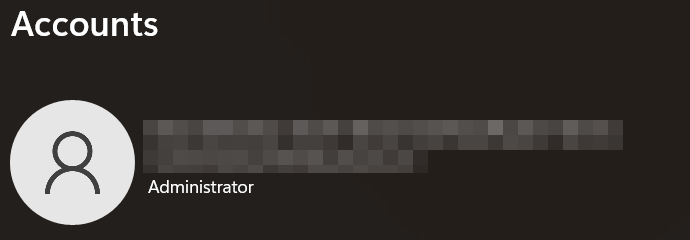
- Look directly under your profile name and Microsoft Account email address. If you see the word Administrator, you currently possess admin privileges. Conversely, if it says Standard User, you operate with restricted permissions.
Method 2: Use the Control Panel (For Older Windows Versions)
Furthermore, if you are utilizing a legacy operating system like Windows 8 or Windows 7—or if you simply prefer classic menus—you can still rely on the Control Panel.
- Press the Windows Key, type Control Panel, and press Enter.
- Click on the User Accounts category, then select User Accounts again on the following screen.
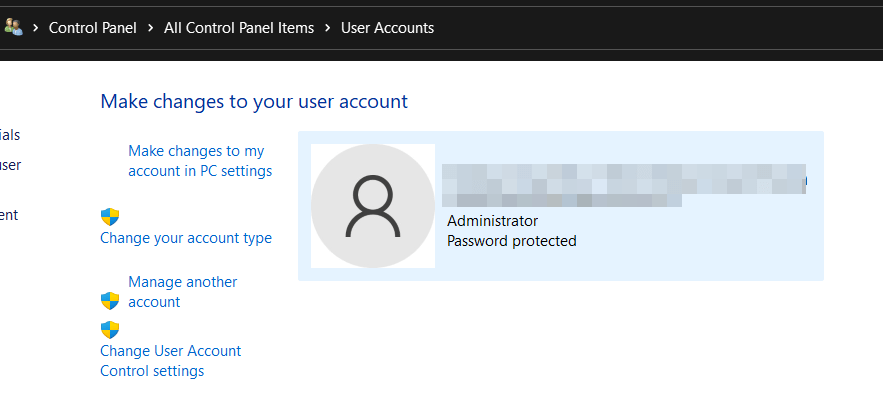
- Look to the right of your profile picture. Your specific account type (either Administrator or Standard) will be explicitly listed next to your username.
Method 3: Check Admin Status Using Command Prompt (CMD)
Alternatively, power users often prefer the Command Line Interface (CLI). Using an elevated Command Prompt bypasses graphical menus entirely and provides instant, highly detailed system readouts.
- Open the Windows Start menu, type cmd, and open the Command Prompt.
- Type the following command and press Enter:
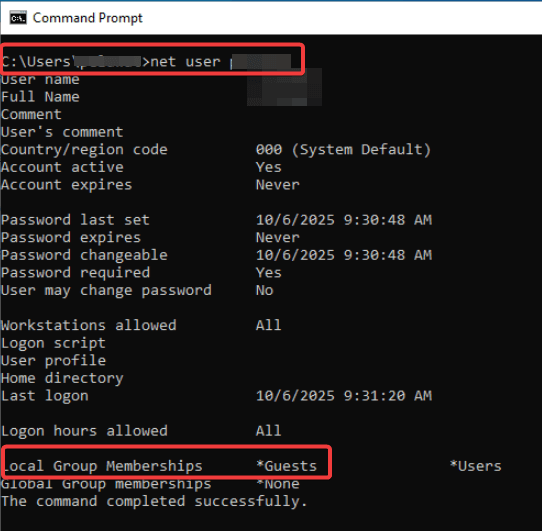
net user %username%
- Scroll down the output until you find the Local Group Memberships line.
- If the readout lists *Administrators, you successfully verified your elevated privileges.
Method 4: Verify via Local Users and Groups (Advanced)
Finally, system administrators operating in complex network environments can use the Local Users and Groups manager to check permissions.
- Press Windows Key + R to open the Run Dialog Box.
- Type lusrmgr.msc and click OK.
- Click on Groups in the left pane, then double-click on Administrators in the center pane.
- If your username appears in the resulting list of members, you have system administrator rights.
Note: This specific tool is unavailable on Windows Home editions.
Method 5: Using Windows PowerShell (The Modern CMD)
PowerShell is the modern, more powerful command-line tool for Windows. This method provides a clean, direct true/false answer.
- Open PowerShell. Right-click the Start button and select Terminal or Windows PowerShell.
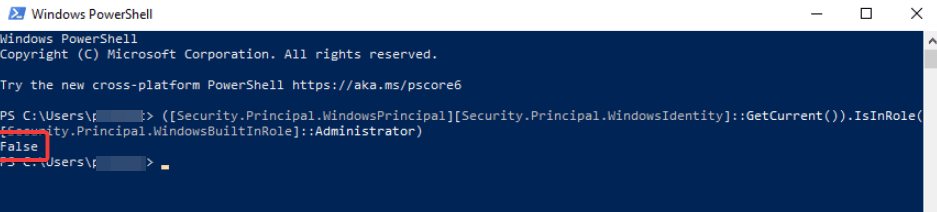
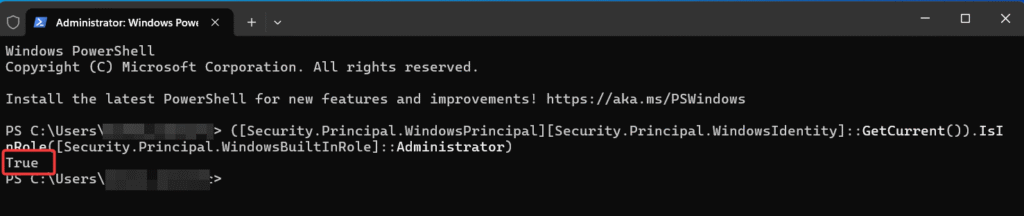
- Run the Command. Copy and paste the following command into PowerShell and press Enter:
([Security.Principal.WindowsPrincipal][Security.Principal.WindowsIdentity]::GetCurrent()).IsInRole([Security.Principal.WindowsBuiltInRole]::Administrator) - Check the Output. PowerShell will simply return True if you are an administrator or False if you are not.
Bonus Method 1: Use PowerShell and the ‘whoami’ Command
To satisfy modern networking environments, many IT professionals prefer using Windows PowerShell over the traditional Command Prompt. The whoami command is a highly efficient semantic alternative for checking network and local permissions.
- Right-click the Windows Start button and select Windows PowerShell or Terminal.
- In the blue command window, type the following conversational keyword command:codePowershell
whoami /groups - Press Enter. Windows will generate a table of all the user groups your account belongs to.
- Look under the “Group Name” column. If you see BUILTIN\Administrators, it means your account possesses full semantic admin privileges.
Bonus Method 2: The UAC Visual Quick Test
If you want to know how to check if you have admin privileges in windows without opening any settings menus or typing code, you can use the User Account Control (UAC) visual test. This mimics natural user behavior when trying to execute an elevated task.
- Locate any desktop shortcut or app (such as your web browser or a game).
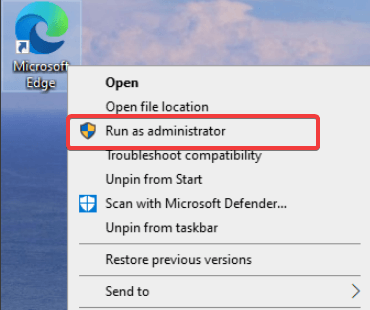
- Right-click the icon and select Run as administrator (indicated by a small blue and yellow shield).
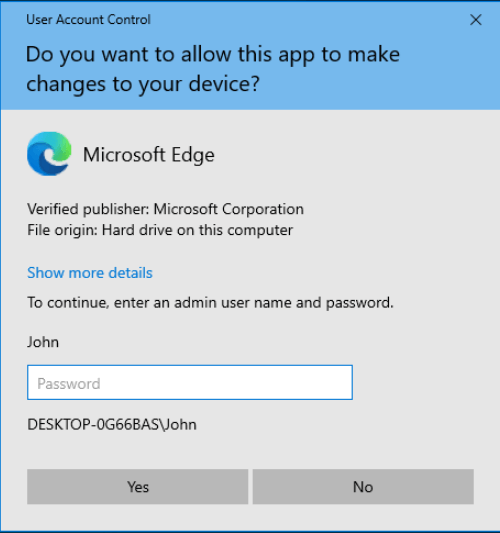
- The screen will dim, and a UAC prompt will appear:
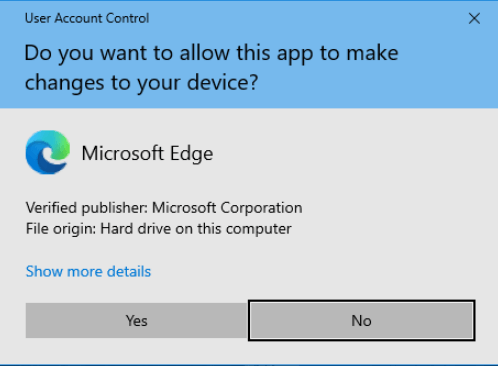
- If you are an Administrator: The prompt will simply ask, “Do you want to allow this app to make changes to your device?” with clickable Yes or No buttons.
- If you are a Standard User: The prompt will demand that you enter an administrator password or PIN before you can proceed.
Bonus Method 3: The Hidden ‘netplwiz’ Utility (Pro Tip)
To truly explore every facet of your system’s accounts, you can utilize the Advanced User Accounts Control Panel. This legacy utility provides a crystal-clear, centralized list of all users and their exact permission groups.
- Press Windows Key + R to launch the Run Dialog box.
- Type netplwiz and press Enter.
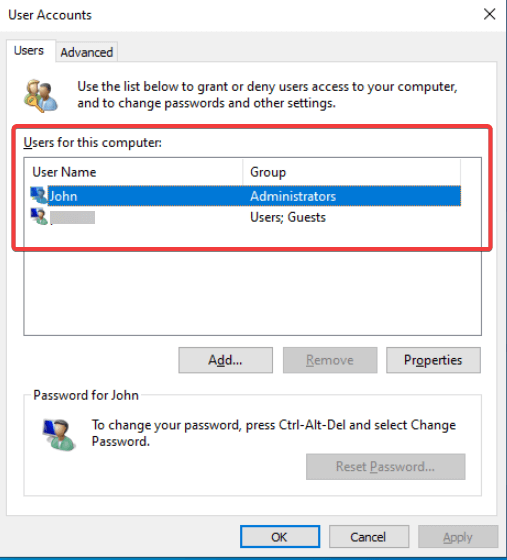
- A new window will pop up listing every user on the PC. Find your username in the list and look at the Group column.
- If it says Administrators next to your name, your rights are verified. You can also double-click your username and navigate to the Group Membership tab for even more detailed permission settings.
Important Context: Work, School, and Domain-Joined Computers
Are you trying to check permissions on a company laptop or university-issued computer? It is vital to understand that organizational machines are managed differently than personal home computers.
Even if you follow the steps above and your account appears to have administrative rights, your IT department might be using Microsoft Entra ID (formerly Azure AD), Mobile Device Management (MDM), or strict Group Policies.
These enterprise-level controls can seamlessly override local settings, preventing you from executing specific commands, installing unapproved software, or modifying network protocols.
If you are constantly hitting permission errors on a work device, you will ultimately need to contact your IT helpdesk to request elevated access.
What to Do If You Don’t Have Admin Rights?
If you just learned how to check if you have admin privileges windows and realized you lack them, you are likely wondering why you can’t install your desired software. Standard users are protected by User Account Control (UAC), which blocks unauthorized system changes.
To fix this, you must log into an account that already has administrative rights. From there, navigate back to Settings > Accounts > Family & other users, select the Standard User account, and click Change account type to grant it Administrator status. For a deeper dive into Microsoft Account administration, refer to the official Microsoft Support documentation on managing user accounts.
Frequently Asked Questions
Q: What can I do with administrator rights?
A: Administrator rights allow you to perform system-wide actions like installing software, changing security settings, and managing other users. For more details, refer to Microsoft’s official documentation on user account types.
Q: What is the fastest command to see all local administrators?
Open Command Prompt and type net localgroup administrators to display a list of all users and groups with admin rights on that specific machine
Q: Where do I find the “Change Account Type” setting in Windows 11?
Navigate to Settings > Accounts > Other users, click the user’s name, and select “Change account type” to toggle between Standard User and Administrator
Q: Why is the “Yes” button missing from my User Account Control (UAC) prompt?
This occurs when your current account lacks administrator privileges; Windows cannot authorize the change because no active admin account is being used to bypass the prompt
Q: How do I regain admin rights if I accidentally removed them from my only account?
You must boot into Safe Mode with Command Prompt or the Windows Recovery Environment (WinRE) to manually grant privileges back to your account
Q: Can I reset my admin password if I am locked out?
Yes, by using the WinRE Command Prompt and entering net user [YourUsername] [NewPassword], you can overwrite a forgotten password without logging in first
Conclusion
Ultimately, knowing how to check if you have admin privileges windows empowers you to take full control of your PC, troubleshoot permission errors, and properly configure your security settings. By utilizing the Settings app, the classic Control Panel, or the Command Prompt, you can identify your exact account permissions in a matter of seconds.
Did this step-by-step guide help you solve your software installation issues? Please implement these steps today, share this post with anyone struggling with Windows permissions, and let us know which method you found easiest in the comments section below!

IT Security / Cyber Security Experts.
Technology Enthusiasm.
Love to read, test and write about IT, Cyber Security and Technology.
The Geek coming from the things I love and how I look.