


Learning how to clear cache in Chrome is the fastest way to fix formatting errors and speed up a sluggish browser.
Whether you are on a PC, Mac, or smartphone, this guide provides the quickest shortcuts and step-by-step settings to get your browser running smoothly again.
Important: Cache vs. Cookies vs. History
To avoid losing data you actually want to keep, it is vital to know the difference between the checkboxes in Chrome’s menu.
- Cached Images and Files: Temporary data (logos, site scripts) stored to speed up loading. Safe to clear anytime.
- Cookies and Other Site Data: Files that save your preferences and login status. Clearing this signs you out of websites.
- Browsing History: The list of websites you have visited. Clearing this removes them from your search bar suggestions.
How to Clear Cache in Chrome
Method 1: How to Clear Cache in Chrome (Windows & Mac)
If the keyboard shortcut isn’t working or you prefer using the mouse, follow this manual path. This method gives you granular control over what you delete.
Here is exactly how to clear cache in Chrome on a desktop computer:
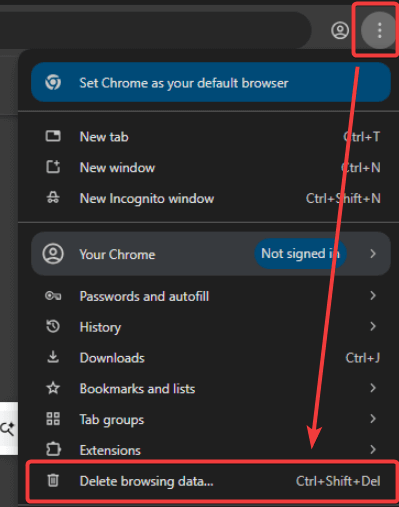
- Open the Menu: Click the Three Vertical Dots icon in the top-right corner of the browser window.
- Navigate to Clear Browsing data: Select Clear browsing data from the sub-menu.
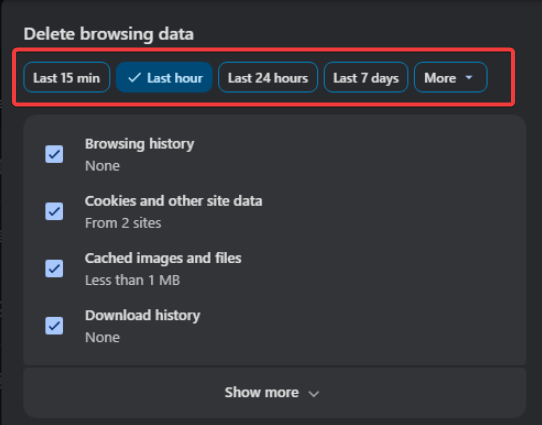
- Choose Your Time Range: In the pop-up window, you will see a dropdown menu labeled Time range.
- Select “Last hour” to fix a sudden issue with a specific site.
- Select “All time” for a complete fresh start.
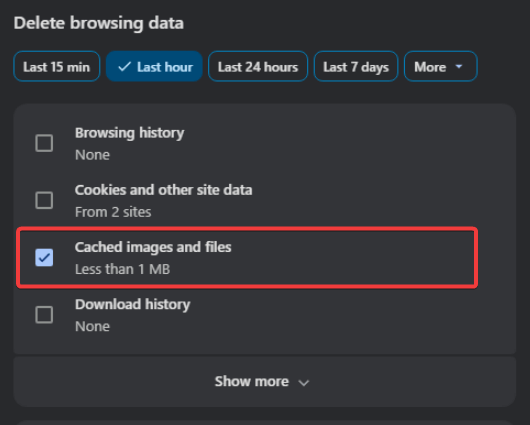
- Select Data Types: Ensure the box for Cached images and files is checked.
- Note: If you also check Cookies and other site data, you will be signed out of most websites (like Gmail or Facebook).
- Execute: Click the blue Clear data button.
Pro Tip: For deeper cleaning, switch to the Advanced tab in the pop-up window. This allows you to clear autofill form data without deleting your browsing history.
For more technical details on how Chrome handles data, visit the official Google Account Help page.
Method 2: How to Clear Cache on Android
Mobile browsers often accumulate heavy cache files that eat up storage space. The process on Android is slightly different from the desktop version.
- Open the Chrome app on your Android device.
- Tap the More icon (three dots) at the top right, then tap History.
- Select Clear browsing data at the very top of the list.
- Next to “Time range,” choose how far back you want to wipe.
- Check Cached images and files. Uncheck “Browsing history” if you want to keep your record of visited sites.
- Tap Clear data.
Method 3: How to Clear Cache on iPhone and iPad (iOS)
If you are an Apple user wondering how to clear cache in Chrome on iOS, the interface varies slightly because Chrome utilizes WebKit on iPhone.
- Launch the Chrome app and look for the Three Dots (menu) at the bottom-right corner.
- Tap Clear Browsing Data directly from the menu (or go to Settings > Privacy and Security > Clear Browsing Data).
- Ensure Cached Images and Files is highlighted with a checkmark.
- Tap the red Clear Browsing Data button at the bottom and confirm the action when prompted.
Method 4: Clear Cache for ONE Site Only
Don’t want to lose your login for Gmail just to fix a glitch on a news site? Most guides skip this crucial step.
You can clear the cache for the specific website you are currently viewing without affecting the rest of your browser.
- Go to the website that is having issues.
- Click the Padlock Icon (or “Tune” icon) in the address bar to the left of the URL.
- Select Site settings.
- Click the Delete data (or “Clear data”) button.
- Refresh the page. The cache for that site only is now fresh.
How to Clear Cache in Chrome (Advanced User)
Automate Clearing Cache on Exit
Do you want to keep your browser clean without doing this manually every time?
For privacy-focused users, Chrome allows you to automatically clear cookies and site data every time you close the browser window:
- Go to Settings > Privacy and security > Site settings.
- Click on Additional content settings > On-device site data.
- Select “Delete data sites have saved to your device when you close all windows.”
Note: This will require you to log in to your email and social media accounts every time you reopen Chrome.
The “Hidden” Developer Menu
For power users and developers, Chrome hides a “Nuclear Option” that is more powerful than the standard clear.
If you want to absolutely ensure a page is fresh, you can access a secret right-click menu:
- Press F12 on your keyboard (or right-click the page and select Inspect) to open Developer Tools.
- With the DevTools pane open, Right-Click the “Refresh” button in the Chrome toolbar.
- You will see three options appear:
- Normal Reload
- Hard Reload
- Empty Cache and Hard Reload (Select this for the deepest clean possible).
Why You Should Clear Your Cache
When you visit websites, Chrome saves snippets of information—like images and scripts—to load pages faster next time. However, this data can become outdated or corrupted.
Clearing your cache forces the browser to download the freshest data from the server. This is the primary solution for:
- Websites that look “broken” or oddly formatted.
- Pages that freeze or fail to load completely.
- Privacy concerns regarding tracking cookies.
Troubleshooting & Common Issues
Sometimes, simply clearing the cache isn’t enough. If you are still facing issues, consider these semantic alternatives:
- Hard Reload: On Windows, press Ctrl + F5 while on the problematic page. This forces just that specific page to reload from the server without clearing your entire browser cache.
- Incognito Mode: Try opening the website in an Incognito Window (Ctrl + Shift + N). If it works there, the issue is definitely related to your cache or extensions.
- Check Extensions: Sometimes a browser extension interferes with page loading. Go to Settings > Extensions and disable them one by one.
Frequently Asked Questions (FAQ)
Will clearing cache delete my passwords?
No. As long as you do not select “Passwords” in the Advanced tab, your saved login credentials will remain safe. However, clearing Cookies will sign you out of websites, requiring you to enter your password again.
Where is the Chrome cache actually stored on my computer?
For technical users who want to see the files, Chrome stores cache in the user directory. On Windows, you can typically find it at:
C:\Users\[Username]\AppData\Local\Google\Chrome\User Data\Default\Cache
Does clearing cache speed up my computer?
It can. While cached files are meant to speed up browsing, a massive cache (gigabytes of data) can slow down the browser application itself. Clearing it frees up memory and storage space.
How often should I clear my Chrome cache?
You don’t need to do it daily. It is best to perform this task only when you encounter loading errors or want to free up disk space. Regular maintenance every 2–3 months is a good practice.
Why do sites load slowly after I clear the cache?
This is normal! Because you deleted the saved images and scripts, Chrome has to re-download everything from the website’s server. Once the data is re-saved, the site will load quickly again on your next visit.
Why isn’t the “Clear data on exit” setting working?
Some users report this setting is inconsistent or fails to recognize all data; using Incognito Mode is often recommended as a more reliable way to ensure no data is saved after a session
Summary
Mastering these browser maintenance steps ensures a faster, safer web experience and prevents frustrating display errors. Now that you know how to clear cache in Chrome on every device, try these steps today to banish loading glitches.
If this guide helped you resolve your browser issues, please share it on social media to help others, or drop a comment below if you have specific questions about Chrome settings!

IT Security / Cyber Security Experts.
Technology Enthusiasm.
Love to read, test and write about IT, Cyber Security and Technology.
The Geek coming from the things I love and how I look.