

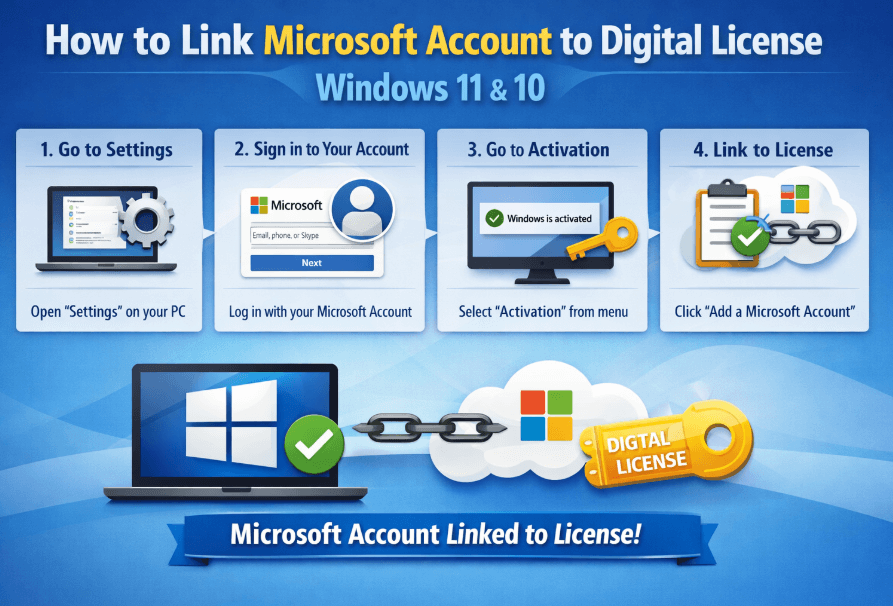
Learning how to link microsoft account to digital license windows is the single most important step before upgrading your PC’s hardware.
By tying your activation to your identity rather than just your motherboard, you ensure a hassle-free re-activation if you ever replace components or reinstall the OS.
Prerequisites: Before You Begin
To successfully perform this action, you must meet three specific criteria. If these are not met, the option to link will not appear in your settings.
- Administrator Privileges: You must be signed in with an Administrator account. Standard users cannot modify activation settings.
- Active Internet Connection: Microsoft servers must verify your credentials in real-time.
- Existing Activation: Your copy of Windows must already be activated. You cannot link a license that doesn’t exist.
How to Link Microsoft Account To Digital License Windows 11 & 10
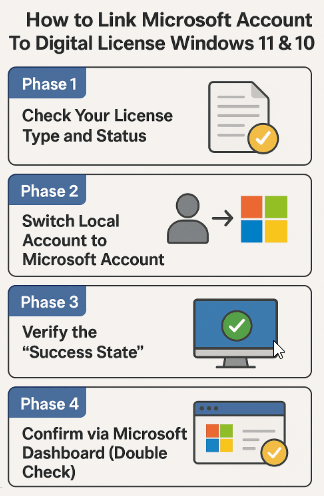
Phase 1: Check Your License Type and Status
Before making changes, it is crucial to verify if your system is using a transferable Retail license or a hardware-bound OEM license, and what your current status is.
Step 1: The “Power User” Check (Optional but Recommended)
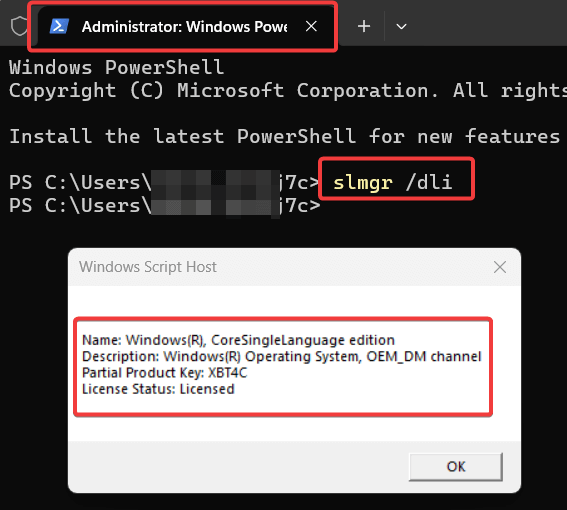
To confirm your license type, use this quick command:
- Right-click the Start button and select Terminal (Admin) or Command Prompt (Admin).
- Type the following command and hit Enter: slmgr /dli
- A small window will pop up. Look at the Description line.
- If it says RETAIL channel, your license is fully transferable.
- If it says OEM channel, you can link your account, but you may face restrictions if you move to a completely new motherboard.
Step 2: Check Activation Settings
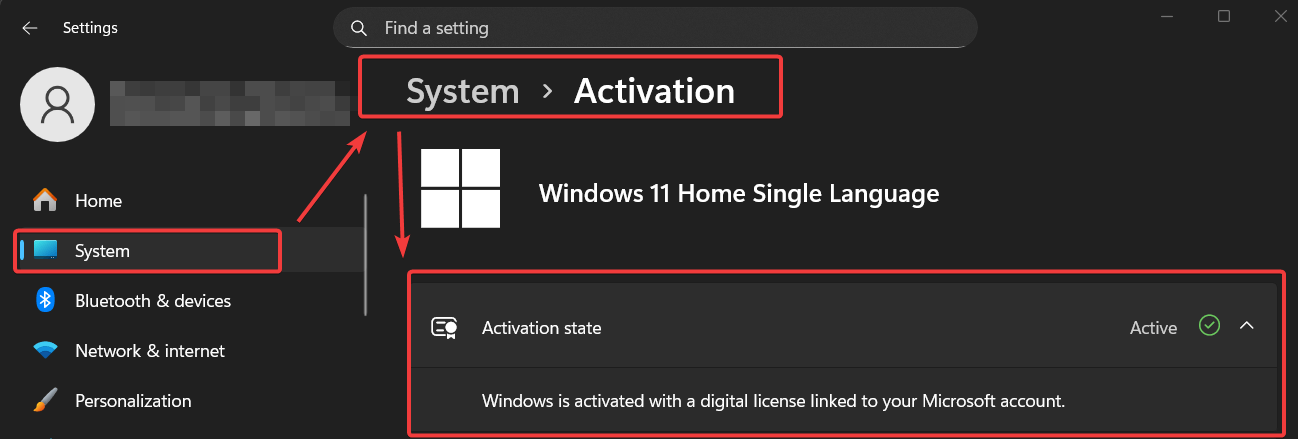
- Press the Windows Key + I to open Settings.
- Navigate to Settings > System > Activation (Windows 11) or Settings > Update & Security > Activation (Windows 10).
- Look at the Activation state.
Analyze your result:
- Scenario A: It says “Windows is activated with a digital license linked to your Microsoft account.”
- Action: You are done. No further action is required.
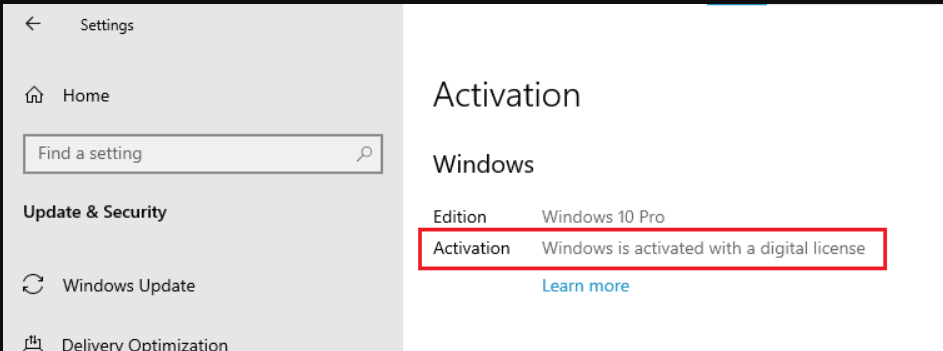
- Scenario B: It says “Windows is activated with a digital license.”
- Action: Your license is active but local. Proceed to Phase 2 to link it.
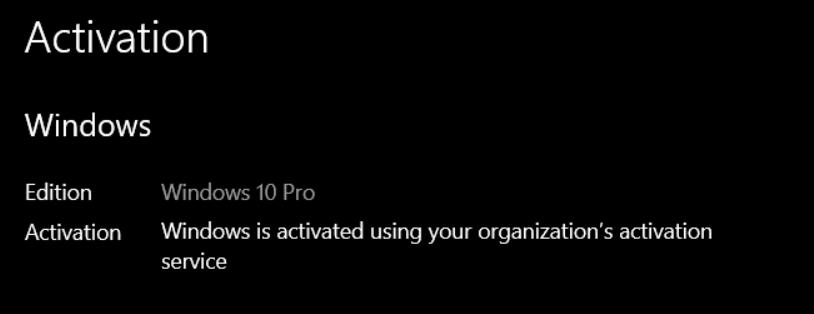
- Scenario C: It says “Windows is activated using your organization’s activation service.”
- Action: You likely have a Volume License (KMS) which cannot be linked to a personal account.
Phase 2: Switch Local Account to Microsoft Account
Most users searching for how to link microsoft account to digital license windows are currently using a “Local Account.” To link the license, we must switch your local profile to an online Microsoft Account.
Follow these steps carefully:
Step 1: Access Account Settings
Go to Start > Settings > Accounts > Your Info.
Step 2: Initiate the Switch
Look for the link that reads: Sign in with a Microsoft account instead. Click it.
(Note: If you do not see this link, you may already be signed in, or your internet is disconnected.)
Step 3: Enter Credentials
A pop-up window will appear. Enter the email address and password for your Microsoft Account (Outlook, Hotmail, Live, etc.). If you do not have one, select “Create one!”
Step 4: Verify Your Current Local Password
This is the step where most users get confused. Windows will ask for your current Windows password. This is the password you used this morning to unlock your PC.
- If you do not use a password to sign in locally, leave the box blank and click Next.
Step 5: Set up a PIN (Optional)
Windows Hello may ask you to create a PIN for faster sign-ins. You can set this up or skip it depending on your preference.
Phase 3: Verify the “Success State”
Once the account switch is complete, you must confirm that the Microsoft servers have registered the link locally.
- Return to Settings > System > Activation.
- Refresh the page if necessary.
- The Activation status should now explicitly read:
“Windows is activated with a digital license linked to your Microsoft account.”
Phase 4: Confirm via Microsoft Dashboard (Double Check)
For total peace of mind—especially if you are about to wipe the drive—you should verify that Microsoft sees your computer in the cloud.
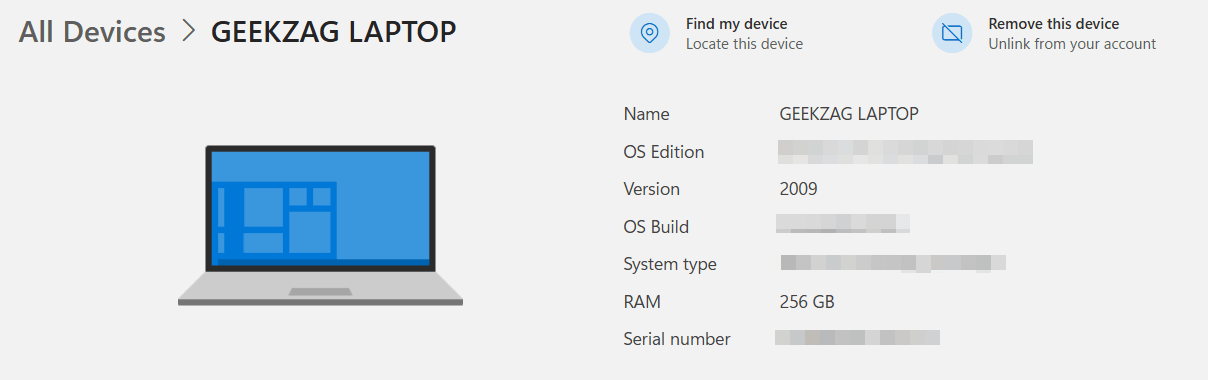
- Open your web browser and go to account.microsoft.com/devices.
- Sign in with the same email you just used in Phase 2.
- Look under the “Devices” tab.
- You should see your current PC listed (e.g., “Desktop-ABC1234”).
- If it is listed here, the link is confirmed on the server side. You are now safe to perform hardware changes.
Pro Tip: Avoid the “Ghost Device” Conflict
While you are on the dashboard, look for any old, unused devices listed under your account. If you see duplicates (e.g., three different “Desktop-User” entries from previous installs), remove the old ones.
- Why? When you run the Activation Troubleshooter later, it will ask you to pick “This is the device I’m using right now.” If your list is cluttered with ghost devices, you might select an old, inactive license by mistake, causing activation to fail. Keep this list clean!
- How to Check if Windows is Activated (3 Easy Methods)
- How to Activate Windows with Product Key Windows 11 & 10
Why You Must Link Microsoft Account to Digital License Windows 10 Before Hardware Changes
In the past, Windows product keys were strictly tied to a specific computer’s hardware ID. If you replaced a major component—specifically the motherboard—Windows would treat your PC as a completely new device and de-activate itself.
However, modern Windows 10 and 11 activation uses a Digital License. When you associate this license with your personal Microsoft Account (MSA), it becomes portable. This allows you to use the Activation Troubleshooter to transfer your license to a “new” PC or a repaired one without buying a new copy of Windows.
Note: This process is essential for Retail licenses. If your computer came with Windows pre-installed (OEM license), the license is strictly tied to the motherboard. While linking is still recommended for syncing settings, OEM licenses technically cannot be transferred to a completely new PC build.
Crucial Safety Step: Back Up Your BitLocker Key
Do not skip this section.
Linking a Microsoft Account on modern hardware (especially laptops or custom builds with TPM 2.0) often automatically triggers Device Encryption (BitLocker).
If you replace your motherboard, the TPM chip that holds the unlock key will be gone. When you reboot, Windows may demand a 48-digit recovery key. If you don’t have it, you will lose access to your data forever.
- Immediately after linking your account, go to Settings > Privacy & security > Device encryption (or search “BitLocker” in the Start Menu).
- If encryption is “On,” click “Back up your recovery key.”
- Save the key to a USB drive, print it, or ensure it is backed up to your Microsoft Account online.
Critical: Handling a Clean Install
If your goal is to wipe the computer and reinstall Windows from a USB drive, you might be wondering how to use this linked license.
When you run the Windows installer after linking your account:
- When asked for a Key, select “I don’t have a product key”.
- Select the exact same edition of Windows you had before (Home or Pro).
- Once Windows installs, sign in immediately with your Microsoft Account.
- Windows will recognize your digital license in the cloud and activate automatically.
Troubleshooting Common Errors
Even with the correct steps, you might run into roadblocks. Here is how to solve the most common intent-based issues.
“I don’t see the option to add a Microsoft Account.”
This usually happens if you are already signed in. Check the “Your Info” page. If you see an email address under your username, you are already using an MSA. Return to the Activation page to verify the link status.
Error 0x8007232B (DNS Name does not exist)
This is a network error. It often indicates you are trying to activate a corporate version of Windows (Enterprise) on a home network. Ensure you are connected to the internet and not using a VPN that might block Microsoft’s activation servers.
Advanced Tip: The Generic Key “Nudge”
If you have replaced your hardware and the Troubleshooter still refuses to activate, the system might be “stuck” looking for the old hardware ID. You can force it to check your digital license by entering the Generic Windows Default Key:
- For Windows 10/11 Pro: VK7JG-NPHTM-C97JM-9MPGT-3V66T
- For Windows 10/11 Home: YTMG3-N6DKC-DKB77-7M9GH-8HVX7
- Go to Change Product Key, enter this key, and let it fail. Then, run the Troubleshooter again. This often “nudges” the system to ping the Microsoft servers correctly.
“Windows is activated by your organization”
If you bought a used PC, it might have a Volume License installed. These licenses expire and cannot be linked to a personal Microsoft Account. You will likely need to purchase a valid Windows Home or Pro license key.
For more technical details on the activation troubleshooter, you can refer to the official Microsoft Support documentation.
Frequently Asked Questions (FAQ)
Can I switch back to a Local Account after linking?
Yes, but be careful. If you switch back to a local account, the “link” status may disappear from the Activation page. To ensure the digital license remains secure for a hardware change, it is best to stay signed in with the Microsoft Account until the hardware upgrade is complete and verified.
Does this work for Windows 11 and Windows 10?
Yes, the backend technology is identical for both versions. While the Settings menu interface looks slightly different, the mechanism to link microsoft account to digital license windows remains exactly the same.
What is the difference between a Product Key and a Digital License?
A Product Key is a 25-character code used for the initial activation. A Digital License is the result of that activation, stored on Microsoft’s servers and tied to your hardware ID. Linking your account connects that Digital License to your email, rendering the Product Key largely unnecessary for future reinstallations.
How do I transfer my Windows license to a new PC?
Sign in with your Microsoft account on the new PC, go to Settings > System > Activation, and select Troubleshoot. Choose “I changed hardware on this device recently,” select your old device, and click Activate.
Is my Windows 11/10 license tied to my email or my hardware?
The license is primarily associated with the hardware (motherboard). Linking it to your Microsoft account creates a secondary association that allows you to re-assign the license through Microsoft’s servers after hardware changes
How many times can I transfer a Retail license?
Sources suggest Retail keys can be transferred to new hardware multiple times (some users report 5-6 moves), provided the old installation is deactivated.
Summary
Securing your operating system activation is a proactive measure that saves time and money. By following this guide on how to link microsoft account to digital license windows, you have successfully transformed your activation from a static, hardware-bound lock into a portable, account-based asset.
If you are planning a PC build or a motherboard upgrade, double-check your activation status using the slmgr command and the online dashboard today. If you found this guide helpful, please share it with fellow PC builders or drop a comment below if you ran into any specific error codes!

IT Security / Cyber Security Experts.
Technology Enthusiasm.
Love to read, test and write about IT, Cyber Security and Technology.
The Geek coming from the things I love and how I look.