

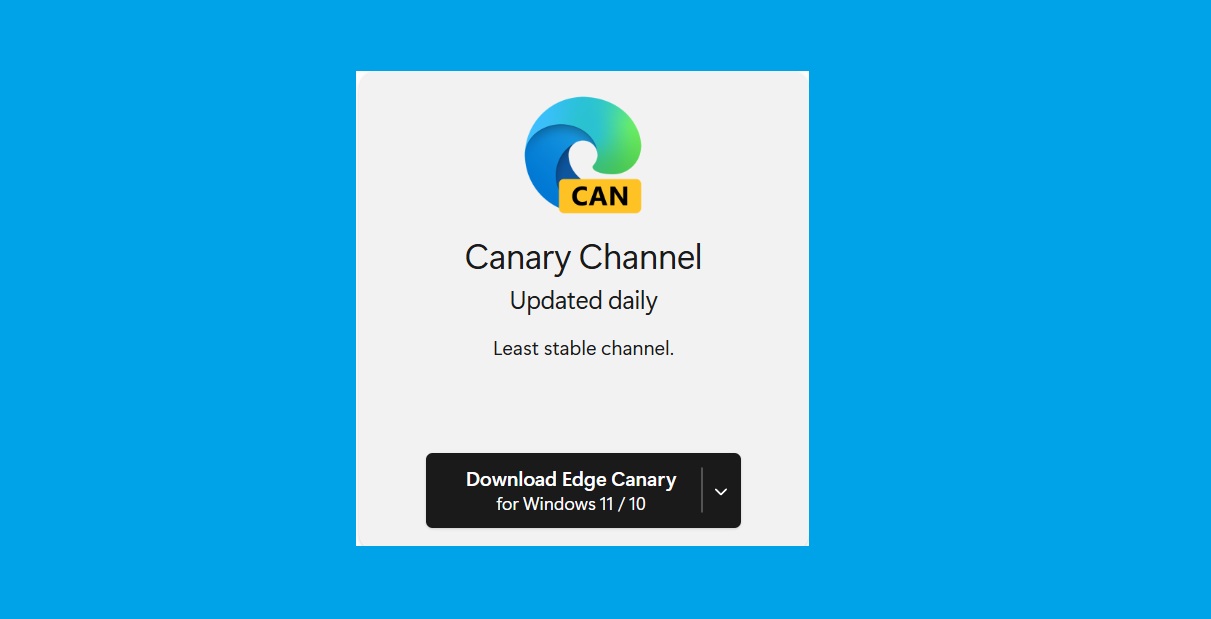
To fully grasp what this browser is, you first need to look at the broader ecosystem. Microsoft has created a structured testing environment for its Chromium-based browser, and the Microsoft Edge Canary channel represents the most experimental, untested tier available to the public.
What is Microsoft Edge Canary?
Built directly on the Chromium open-source project, it is specifically designed for developers, IT professionals, and tech enthusiasts who want to test new capabilities before the general public sees them.
Microsoft Edge Canary Channels
To help you understand where it fits, here is how the four main channels compare:
| Channel Name | Update Frequency | Stability Level | Target User / Audience |
|---|---|---|---|
| Canary | Daily | Very Low (Bleeding-Edge) | Developers & Early Adopters |
| Dev | Weekly | Low to Moderate | IT Pros & Active Testers |
| Beta | Every 4 Weeks | High | General Enthusiasts |
| Stable | Every 4 Weeks | Extremely High | Everyday Everyday Users |
Understanding the Update Frequency and Stability
When you install this software, you are opting into a highly aggressive update schedule. The Microsoft Edge Canary build receives automated daily updates. Because these updates happen overnight directly from the active development branch, they do not undergo rigorous manual testing by Microsoft engineers.
⚠️ Warning: Because this is a bleeding-edge release, you will occasionally encounter bugs, browser crashes, or broken web pages. Therefore, it is highly recommended not to use this as your primary browser for critical daily work.
System Requirements and Pre-Installation Checklist
Currently, Microsoft officially supports the following environments for their daily testing builds:
- Windows: Windows 10 (Build 19041 or later) and Windows 11.
- macOS: macOS 10.15 (Catalina) or newer.
- Linux: Ubuntu, Debian, Fedora, and openSUSE (64-bit systems only).
- Hardware: A minimum of 4GB RAM and 500MB of free disk space is highly recommended for optimal performance during crash-dump logging.
Furthermore, as a vital pre-installation precaution, you should temporarily disable automatic profile syncing on your primary Microsoft account. Because experimental builds can occasionally corrupt saved cloud states, creating a dedicated “tester” Microsoft account ensures your primary bookmarks, saved passwords, and extensions remain completely insulated from your testing environment.
Microsoft Edge Canary Download Link
Here is how you can perform a safe Microsoft Edge Canary download:
- Navigate to the official Microsoft Edge Insider download page.
- Select the download button corresponding to your operating system (Windows 11, macOS, Linux, or Android).
- Read and accept the Microsoft software license terms to download the
EdgeSetup.exe
How to Execute a Safe Installation
Many users worry that installing an experimental browser will overwrite their stable setup. Fortunately, Microsoft engineered this to allow for a complete side-by-side installation. This means your bookmarks, history, and passwords in your regular Edge browser remain totally isolated and safe.
Installing via Installer
Open the downloaded file and run the installer. (Note: No system administrator reboot is required).
Installing via Command Line (Winget)
For IT professionals and developers, using a graphical installer isn’t always the most efficient method. If you prefer terminal commands, you can utilize the Windows Package Manager.
Simply open your Command Prompt or PowerShell and execute the following command:
winget install --id=Microsoft.Edge.Canary -e.
Consequently, this fetches the latest package and installs it silently in the background, streamlining your setup process.
How to Enable Experimental Features
Once installed, you will notice the browser icon is completely yellow or gold, distinguishing it from the standard blue icon. Now, how do you actually test the hidden features?
Simply type edge://flags into your address bar and press Enter. Consequently, this hidden menu opens up a vast list of experimental toggles.
You can search for specific telemetry data toggles, UI redesigns, or hardware performance boosters. Furthermore, to activate a feature, simply change the dropdown from “Default” to “Enabled,” and restart the browser to see the changes take effect.
How to Provide Feedback to the Microsoft Edge Team
The primary reason this testing environment exists is to gather telemetry data and user reports before a feature reaches the general public. If you encounter a bug, an unresponsive page, or simply want to suggest an improvement, Microsoft makes it incredibly easy to communicate.
You can click the “Send Feedback” smiley face icon located in the top right corner of the browser window, or use the keyboard shortcut Alt+Shift+I.
Providing detailed descriptions and attaching diagnostic data helps engineers patch issues swiftly.
How to Uninstall the Experimental Build
Sometimes, the bleeding-edge updates become too unstable for your testing workflow. If you decide to remove the browser, the process is straightforward and will not affect your standard setup.
Simply navigate to your Windows Settings
- Select “Apps”
- Find the testing application in your installed apps list, and click “Uninstall“
Because it uses isolated directories, your primary web data remains perfectly intact.
Frequently Asked Questions (FAQ)
Is this browser safe for daily use?
Yes, the software file itself is completely virus-free and securely developed by Microsoft. However, because the code updates daily, the actual browsing experience can be highly unstable. You might experience random tab crashes or incompatible extensions.
Can I use the experimental channels alongside regular Edge?
Absolutely. It installs in a completely separate directory on your hard drive. Moreover, you can run both the Stable and experimental versions simultaneously on the same screen without any software conflicts.
How do I stop the browser from updating daily?
You cannot natively stop the daily updates. Microsoft automatically pushes these updates in the background to ensure you are always testing the newest code and providing accurate bug reports.
Why should I use Edge Canary instead of the Stable version?
Users typically choose Canary to access experimental features early, such as full desktop extension support or new UI layouts before they reach the general public.
Why does Edge Canary show a “reinstall with administrator privileges” error for IE mode?
This happens because Canary installs at the user level by default; IE mode requires a system-level installation (typically in C:\Program Files) to function correctly
Conclusion
In summary, testing this experimental browser gives you an exciting, front-row seat to the future of web browsing.
By utilizing side-by-side installation and the hidden flags menu, you can safely explore bleeding-edge updates without risking your primary workflow.
Before installing any experimental software, always remember how to backup computer data to protect your important files from unexpected system crashes.
If you found this guide helpful, please share it with your fellow tech enthusiasts, implement these testing strategies today, and drop a comment below about your favorite experimental feature!

IT Security / Cyber Security Experts.
Technology Enthusiasm.
Love to read, test and write about IT, Cyber Security and Technology.
The Geek coming from the things I love and how I look.