

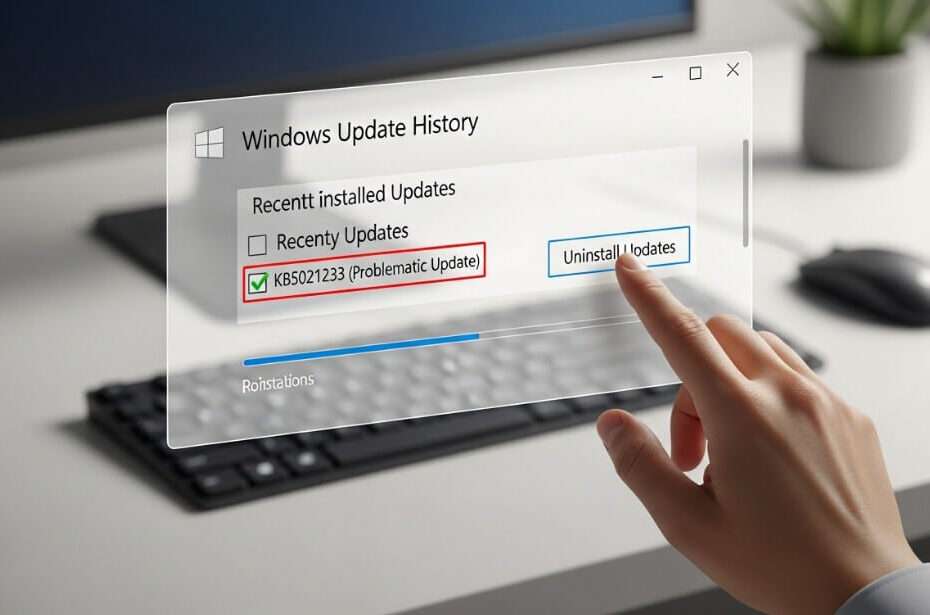
If you are looking for how to uninstall problematic windows updates easily on windows, this guide covers the most effective methods. Whether you can still access your desktop or your computer is stuck in a boot loop, we have a solution for you.
- Why Do You Need to Uninstall Windows Updates?
- Method 1: Uninstall Updates via Windows Settings
- Method 2: Use Advanced Startup (If Windows Won’t Boot)
- Method 3: Uninstall Using Command Prompt (For Advanced Users)
- Common Questions About Removing Windows Updates
- Conclusion: Take Back Control of Your PC’s Stability
Why Do You Need to Uninstall Windows Updates?
Understanding the “why” helps you choose the right solution. Users typically need to remove updates for three reasons:
- Performance Issues: The system becomes slow or unresponsive.
- Compatibility Conflicts: Specific apps or drivers stop working.
- Critical Errors: The computer fails to boot or crashes repeatedly.
Below are the three best methods to roll back your system, ranked from easiest to most advanced.
Method 1: Uninstall Updates via Windows Settings
This is the standard method if your computer can still boot to the desktop. It is the safest way to remove minor “quality updates” or recent patches.
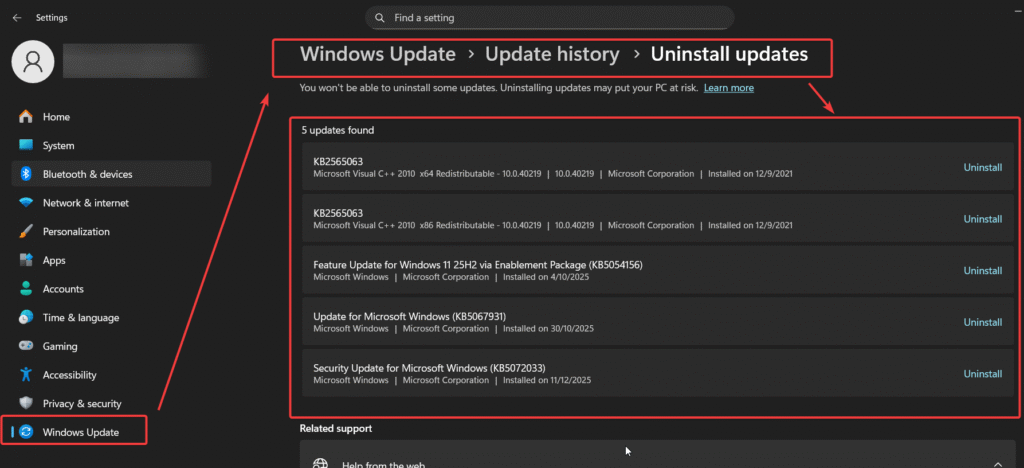
- Press the Windows key + I to open the Settings menu.
- Select Windows Update from the sidebar or main menu.
- Click on Update history to view a list of recently installed patches.
- Scroll down to the “Related settings” section and click Uninstall updates.
- Locate the specific update ID (e.g., KB5034441) causing the issue.
- Click the Uninstall button next to the update and confirm your choice.
- Restart your computer to finalize the changes.
Method 2: Use Advanced Startup (If Windows Won’t Boot)
If a problematic update causes a “boot loop” or prevents Windows from loading, you must use the Windows Recovery Environment (WinRE).
- Power on your PC and hold the power button to turn it off as soon as the Windows logo appears. Repeat this 3 times to trigger Automatic Repair.
- Select Advanced options when the recovery screen appears.
- Navigate to Troubleshoot > Advanced options > Uninstall Updates.
- Choose between Uninstall latest quality update (for minor monthly patches) or Uninstall latest feature update (for major version upgrades).
- Follow the on-screen prompts and enter your password if requested.
Method 3: Uninstall Using Command Prompt (For Advanced Users)
If the graphical menus fail, you can use the Command Prompt tool within the Recovery Environment to force the uninstallation.
- Enter the Advanced options menu (as detailed in Method 2).
- Select Command Prompt.
- Type the following command to list installed updates:
wmic qfe list brief /format:table - Identify the HotFixID of the problematic update (e.g., KB1234567).
- Type the following command to remove it (replace the ID with your specific number):
wusa /uninstall /kb:1234567 /quiet - Restart your computer once the process is complete.
Best tools to remove faulty Windows updates without risking system stability?
Windows Update Troubleshooter
The safest first step. This non-destructive tool automatically detects and resolves common update glitches (like stuck services) without altering your system configuration.
Manual Uninstall via Setting
Allows for the targeted removal of specific buggy updates through the “Update History” menu, ensuring you only remove the problematic patch while keeping the rest of the OS intact.
System Restore
Acts as a reliable safety net. If an update destabilizes the PC, this reverts the system settings to a previous stable point without deleting personal files.
DISM and SFC Commands
Essential for maintaining stability. Running sfc /scannow or DISM commands repairs corrupted system files that may be causing the update failure, fixing the root cause rather than just removing the update.
Windows Recovery Environment (WinRE)
The go-to tool for critical errors. If the system cannot boot, WinRE allows you to access “Uninstall Updates” or “Startup Repair” safely from outside the main operating system.
Backup Solutions
For absolute risk mitigation, creating full system images or backups before updating ensures you can recover instantly from any update disaster.
Common Questions About Removing Windows Updates
Q: Is it safe to uninstall Windows updates?
A: Yes, it is safe to uninstall a recent update to fix immediate bugs, but you should pause updates temporarily rather than avoiding them forever to maintain security.
Q: Is it safe to uninstall Windows updates?
A: Yes, it is safe to uninstall a recent update to fix immediate bugs, but you should pause updates temporarily rather than avoiding them forever to maintain security.
Q: Will uninstalling an update delete my files?
Q: Will uninstalling an update delete my files?
A: No, uninstalling a system update only reverts system files and patches; your personal documents, photos, and applications will remain untouched.
Conclusion: Take Back Control of Your PC’s Stability
System instability shouldn’t disrupt your workflow or leave you staring at a blank screen. By mastering the methods outlined above—from the standard Settings menu to the powerful Recovery Environment—you can quickly revert unexpected glitches and restore your computer’s performance.
We hope this guide helped you uninstall problematic windows updates easily windows might have installed automatically. Remember to always create a System Restore point before applying future patches to ensure you have a safety net.
Did this guide resolve your crash or boot loop? Drop a comment below to let us know which method worked for you, and share this post to help others troubleshoot their system issues today!

IT Security / Cyber Security Experts.
Technology Enthusiasm.
Love to read, test and write about IT, Cyber Security and Technology.
The Geek coming from the things I love and how I look.