

Looking for a complete guide on how to uninstall third-party antivirus software windows users can actually rely on?
Standard removals often fail, leaving broken residual files that block Windows Defender. This step-by-step tutorial reveals how to completely remove stubborn security programs without crashing your PC.
Important: Create a System Restore Point Before Starting
Before you modify critical system settings or dive into the Windows Registry, you must protect your computer. Security programs tie themselves deeply into your operating system. Therefore, creating a System Restore point acts as your safety net.
- Click the Start Menu and type “Create a restore point”.
- Select the matching result to open the System Properties window.
- Click on your main drive (usually C:) and hit the Create button.
- Type a descriptive name (like “Before Antivirus Removal”) and Click Create.
Understanding Why Antivirus Software is Hard to Remove
If you are wondering why your security software refuses to uninstall easily, it all comes down to a feature called “Self-Defense.” To prevent advanced malware or ransomware from maliciously deleting your antivirus, security vendors lock their program files deep within the Windows kernel.
Consequently, these self-defense modules often trigger “Access Denied” errors or grey out the uninstall button when a user attempts a normal removal. Knowing this helps explain why you might need the advanced methods outlined below to fully clear these resilient files from your system.
How to Uninstall Third-party Antivirus Software in Windows 11 & 10
Method 1: The Standard Removal (Windows Settings / Control Panel)
When you initially attempt to uninstall third-party antivirus software windows built-in settings should always be your first stop. Although this method occasionally leaves leftover files, it correctly unregisters the main application.
Uninstall via Windows 11 Settings
- Open the Start Menu and click the Settings gear icon.
- Navigate to Apps on the left sidebar, then select Installed apps.
- Scroll down until you locate your security program (e.g., Avast, McAfee, or Bitdefender).
- Click the three horizontal dots next to the app and select Uninstall.
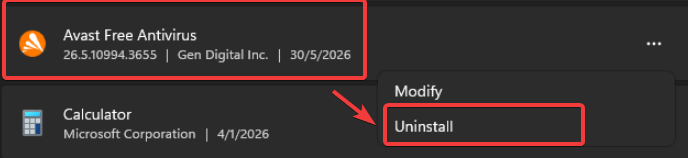
- Follow the on-screen prompts and Reboot your PC.
Uninstall via Windows 10 Control Panel
- Press the Windows Key + R to open the Run dialog box.
- Type appwiz.cpl and Press Enter to open the Programs and Features list.
- Right-click on your antivirus software and select Uninstall/Change.
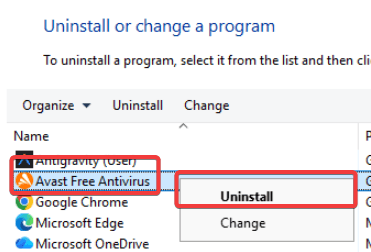
- Complete the uninstallation wizard and restart your computer.
Method 2: Use Official Antivirus Removal Tools (Recommended)
Because security software features self-defense modules to prevent malware from deleting them, standard uninstallation often fails. To counter this, cybersecurity vendors provide proprietary removal tools. These dedicated utilities wipe out hidden services and background processes.
Download the official removal tool for your specific brand below:
- McAfee: Download the McAfee Consumer Product Removal tool (MCPR).
- Norton: Use the Norton Remove and Reinstall Tool.
- Avast: Run the Avast Clear Uninstall Utility.
- Bitdefender: Access the Bitdefender Uninstall Tool.
- Kaspersky: Download the kavremvr tool directly from their support portal.
Note: Always right-click the downloaded tool and select Run as administrator for the best results.
Method 3: Clean Up Residual Files Manually (Advanced)
To completely uninstall third-party antivirus software windows requires you to clean up the residual files that official uninstallers occasionally miss.
Deleting Leftover AppData Folders
- Press Windows Key + R, type %appdata%, and hit Enter.
- Search for any folders carrying your previous antivirus brand’s name.

- Right-click the folder and select Delete.
- Repeat this process by typing %localappdata% in the Run dialog.

Cleaning the Windows Registry (Proceed with Caution)
⚠️ CAUTION: Modifying the Windows Registry incorrectly can cause severe system crashes. Ensure you have created a System Restore point (as outlined above) before proceeding.
- Press Windows Key + R, type regedit, and click OK.
- Navigate to HKEY_CURRENT_USER\Software and delete any keys related to your antivirus vendor.
- Navigate to HKEY_LOCAL_MACHINE\SOFTWARE and repeat the process.
- Close the Registry Editor and restart your computer.
Method 4: Use Safe Mode for Stubborn Antivirus Software
Sometimes, an antivirus program simply refuses to uninstall because its background services lock the files. If you encounter a “File in Use” or “Access Denied” error, you must boot into Safe Mode.
Safe Mode loads Windows with only essential drivers, bypassing the antivirus self-protection modules.
- Press Windows Key + R, type msconfig, and click OK.
- Click on the Boot tab.
- Check the box next to Safe boot and ensure Minimal is selected.
- Click Apply, then OK, and restart your PC.
- Once in Safe Mode, repeat Method 1 or Method 2 to successfully remove the software.
Method 5: Use a Universal Third-Party Uninstaller
If you prefer not to dig into the Windows Registry manually, using a specialized third-party uninstaller is a highly effective alternative. These applications force the uninstallation and automatically sweep your hard drive for orphaned registry keys and hidden folders.
- Download a reputable tool such as Revo Uninstaller Free or IObit Uninstaller.
- Install and Open the program.
- Locate your target antivirus in the populated software list.
- Right-click the program and select Uninstall.
- Select the “Advanced” scanning mode when prompted to hunt down and delete all leftover traces automatically.
Method 6: Uninstall via Command Prompt (WMIC)
For power users or those dealing with an unresponsive Windows interface, using the Command Prompt provides a direct way to force an application out of your system using the Windows Management Instrumentation Command-line (WMIC).
- Click the Start Menu, type cmd, right-click Command Prompt, and select Run as administrator.
- Type wmic and Press Enter.
- Type product get name and Press Enter to load a list of installed programs.
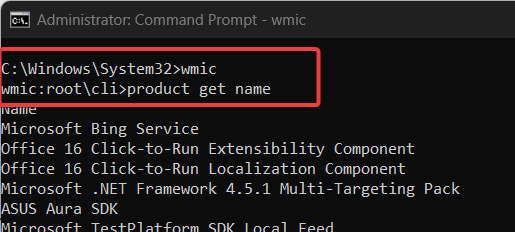
- Locate the exact name of your antivirus software in the generated list.
- Type product where name=”[Exact Name of Antivirus]” call uninstall (replacing the brackets with the actual name) and Press Enter.
- Type Y to confirm the removal when prompted.
Post-Uninstallation: How to Re-Enable Windows Defender
Once you remove the conflicting software, you must ensure your computer remains protected. Windows includes an excellent built-in security solution, but you need to verify it is active.
- Click the Start Menu and search for Windows Security.
- Open the app and click on Virus & threat protection.
- Select Manage settings under the Virus & threat protection settings header.
- Toggle the Real-time protection switch to On.
For further reading on maintaining built-in security, check out Microsoft’s official guide on Windows Security.
👉 Read our complete, step-by-step guide on how to activate Windows Defender / Windows Security, including troubleshooting steps.
Troubleshooting: Fixing Internet Issues After Uninstallation
Did you lose your internet connection after removing your antivirus? Third-party security suites often install custom network filters (NDIS drivers) to monitor and protect web traffic.
When standard uninstallers fail to remove these filters properly, it severs your internet access. To fix this, you must reset your Windows network sockets:
- Open the Start Menu, type cmd, right-click Command Prompt, and select Run as administrator.
- Type netsh winsock reset and Press Enter.
- Restart your computer to restore your internet connection.
Frequently Asked Questions (FAQ)
What is the best way to uninstall third-party antivirus software windows struggles to remove?
The most effective method is using the official vendor removal tool (like MCPR for McAfee or Avast Clear). If that fails, boot your computer into Safe Mode and run the removal tool again to bypass any locked background services.
Will Windows Defender automatically turn on after I remove my old antivirus?
Usually, yes. Windows is designed to detect when a third-party security suite is removed and will automatically activate Windows Defender. However, you should always manually check the Windows Security app to verify that real-time protection is enabled.
Should I use uninstaller software like Revo Uninstaller?
Yes. If you are uncomfortable manually editing the Windows Registry, reputable third-party tools like Revo Uninstaller can automatically scan for and delete residual files and registry keys left behind by stubborn security applications.
Why does Windows 11 say I have a third-party antivirus after I uninstalled it?
his occurs because the uninstallation failed to clear the Windows Management Instrumentation (WMI) repository. Windows Security Center continues to see the product as active in the AntiVirusProduct WMI class until it is manually purged or reset
What do I do if the “Uninstall” button for my antivirus is greyed out?
Security software often greys out the option by design to prevent malware from disabling it. To bypass this, boot your PC into Safe Mode or use the publisher’s dedicated cleanup utility
Should I remove the pre-installed antivirus that came with my laptop?
Generally, yes. Many experts consider pre-installed trials like McAfee or Norton to be bloatware. Windows Defender is built-in and considered sufficient for most standard users
Does uninstalling a third-party antivirus void my laptop’s warranty?
No. Software changes, including removing pre-installed security suites, have no impact on your hardware warranty
Is Windows Defender enough to protect my PC?
Yes, Microsoft Defender functions as a baseline real-time scanning engine that is highly effective. For many, it is less resource-intensive than third-party alternatives
Can I run two antivirus programs at the same time?
No. Running multiple real-time scanners causes system resource contention, file-locking deadlocks, and can lead to severe performance degradation or system crashes. However, if your device is on Microsoft Defender Plan with EDR features, you can have another antivirus running on you device. Defender will turned its antivirus services and enable the EDR Block Mode feature.
Summary
Removing a stubborn security suite doesn’t have to end in frustration or a system crash. By starting with a system restore point, utilizing the official vendor removal utilities, and carefully cleaning up residual files, you can easily restore your computer’s performance.
Hopefully, this guide helped you completely uninstall third-party antivirus software windows environments often struggle with.
If you found this step-by-step tutorial helpful, please share this article with others who might be fighting with stubborn security programs, and let us know which removal method worked for you in the comments below!

IT Security / Cyber Security Experts.
Technology Enthusiasm.
Love to read, test and write about IT, Cyber Security and Technology.
The Geek coming from the things I love and how I look.