

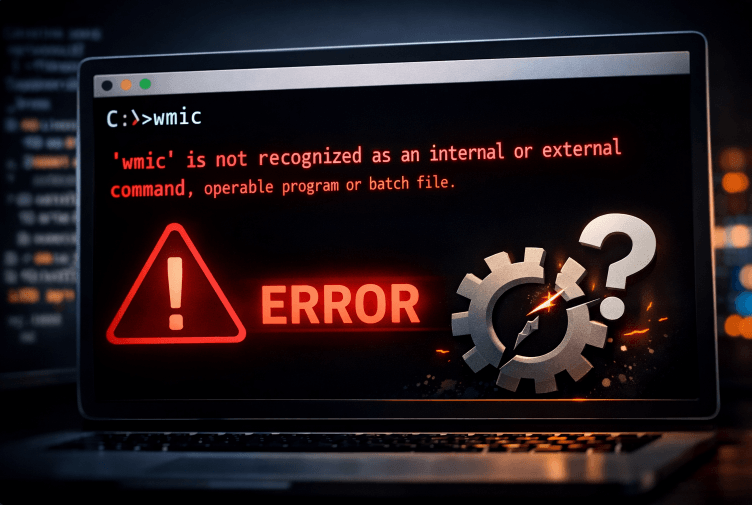
It is very frustrating if you stumbled upon error ‘wmic’ is not recognized as an internal or external command operable program or batch file. We understand you need your workflow restored immediately.
Therefore, this comprehensive guide will not only show you how to instantly reinstall WMIC on modern Windows systems, but also teach you how to future-proof your scripts using modern PowerShell cmdlets.
Why is the WMIC Command Not Found?
To effectively troubleshoot this problem, you first need to understand the root cause. Search engines and system event logs point to two highly specific reasons why this happens:
- Missing System Environment Variables: On Windows 10 and earlier Windows 11 builds, the WMIC executable file still exists on your hard drive inside C:\Windows\System32\wbem. However, if that directory gets accidentally removed from your System Path variables, Command Prompt will not know where to look when you type “wmic”.
- Microsoft’s Official Deprecation: Microsoft officially deprecated the Windows Management Instrumentation Command-line (WMIC) utility. As a result, starting with Windows 11, version 22H2, it became an optional feature. Furthermore, in the Windows 11 24H2 update, WMIC was removed entirely by default.
Now that we know the “why,” let’s dive right into the actionable, step-by-step fixes.
WMI vs. WMIC: Clarifying the Confusion
When reading about Microsoft’s deprecation notices, a lot of IT professionals panic. It is crucial to distinguish between WMI and WMIC.
WMI (Windows Management Instrumentation) is the underlying backend infrastructure that Windows uses to request system data. WMI is NOT deprecated. It remains a permanent, critical component of the Windows OS architecture.
WMIC (Windows Management Instrumentation Command-line) is simply the command-line wrapper used to interact with WMI through traditional Command Prompt. Only this specific interface is deprecated, which is why PowerShell is the recommended path forward.
How to Check Your WMIC Status First
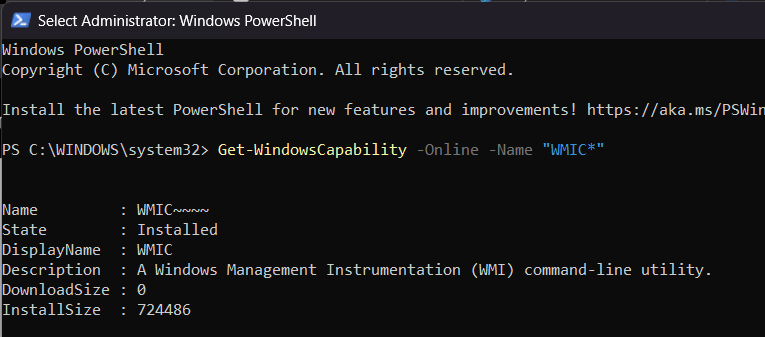
Before blinding applying fixes, you should perform a quick diagnostic check to see if WMIC is completely missing from your machine, or if it is just hiding. You can do this by querying your Windows Capabilities.
- Open PowerShell as an administrator.
- Run the following command:
Get-WindowsCapability -Online -Name "WMIC*"
- If the output says State: Installed, then WMIC is on your PC. You should skip to Fix 1 (Environment Variables) or Fix 4 (SFC Scan).
- If the output says State: NotPresent, then WMIC has been uninstalled by Windows 11. You should skip to Fix 2 or Fix 3 to reinstall it.
Fix 1: Add WMIC to System Environment Variables (Windows 10 & Early Windows 11)
If you are running Windows 10 or an older version of Windows 11, your WMIC application is likely just disconnected from your command path. You can quickly re-link it by editing your environment variables.
Follow these exact steps:
- Press the Windows Key + R to open the Run dialog box.
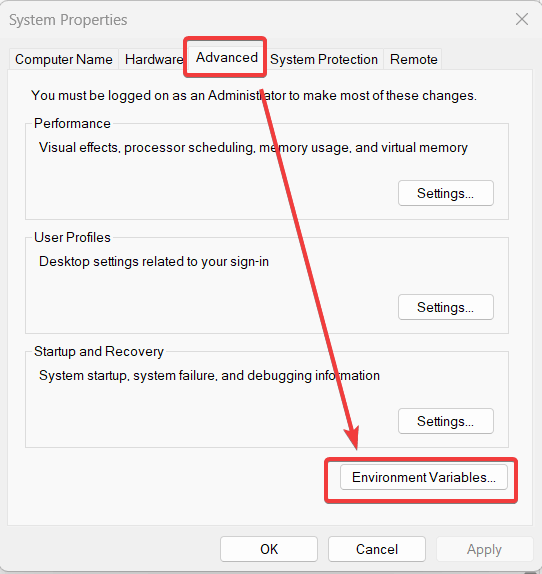
- Type sysdm.cpl and press Enter to open System Properties.
- Navigate to the Advanced tab located at the top.
- Click on the Environment Variables… button at the bottom of the window.
- Scroll down to the System variables section, highlight the variable named Path, and click Edit.
- Click New and paste the following directory path:
C:\Windows\System32\wbem
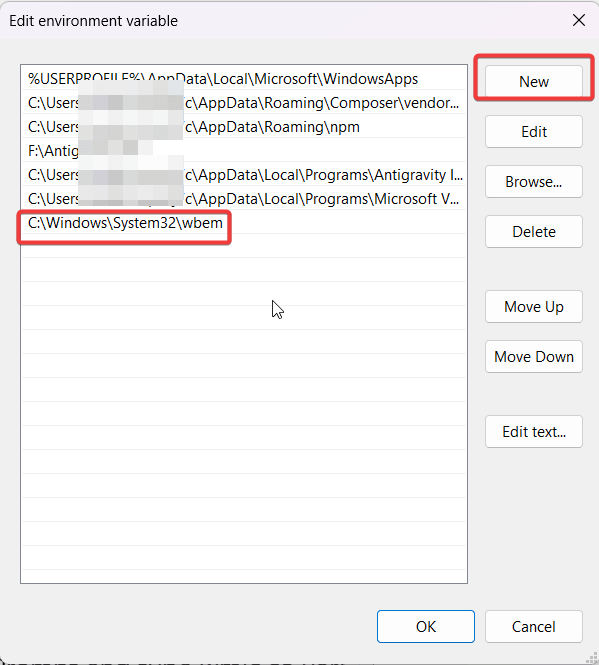
- Click OK on all three windows to save your changes.
- Finally, restart your Command Prompt and type wmic to verify it is operable.
Fix 2: Install WMIC via Optional Features (Windows 11 22H2 & 24H2)
If you have recently updated your OS, the tool has been uninstalled. Consequently, you must manually add it back as a Windows Feature on Demand (FoD).
Here is how to do it through the graphical interface:
- Open your Windows Settings app (Windows Key + I).
- Click on System from the left-hand menu.
- Select Optional features from the list.
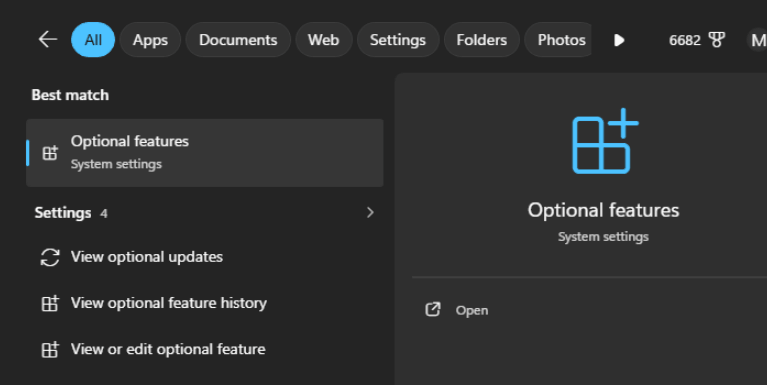
- Next to Add an optional feature, click on the View features button.
- In the search bar, type “WMIC“.
- Check the box next to WMIC and click Add.
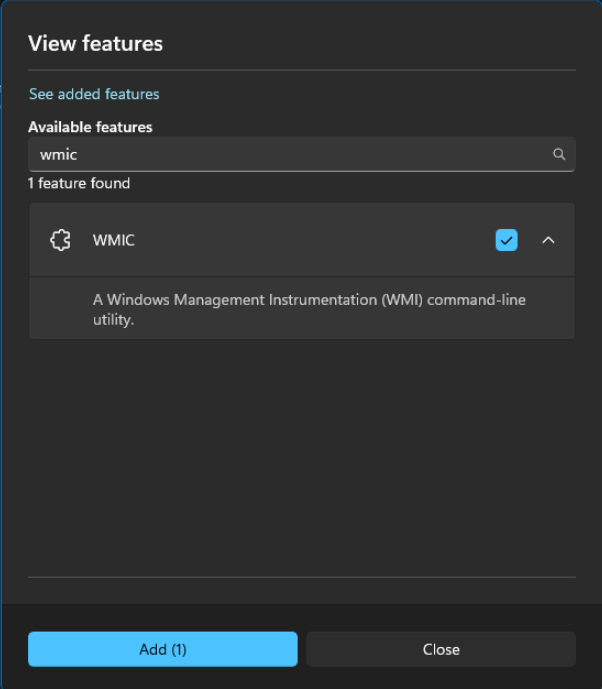
Once the installation bar completes, the command will immediately be recognized in your terminal.
Fix 3: Install WMIC using Command Prompt or DISM
When running legacy batch scripts, seeing wmic is not recognized as an internal or external command operable program or batch file can halt automated deployments. If you are an IT administrator who prefers managing systems via the terminal, you can force the installation using the Deployment Image Servicing and Management (DISM) tool.
Execute this command:
- Click the Start Menu, type cmd, right-click Command Prompt, and select Run as administrator.
- Copy and paste the following active command into the terminal and press Enter:
DISM /Online /Add-Capability /CapabilityName:WMIC~~~~
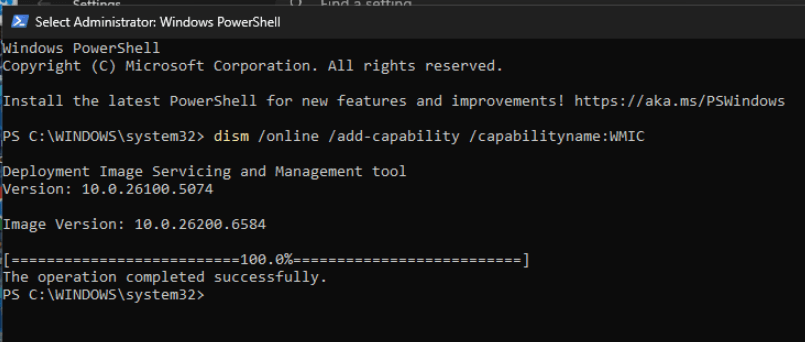
Wait a few moments for the progress percentage to reach 100%. This completely bypasses the Settings UI and restores the tool directly.
Fix 4: Run SFC Scans to Repair WMI Corruptions
Occasionally, even if your environment path is perfectly configured on an older operating system, corrupted system files can still prevent Windows from reading the executable. If the previous methods fail, running a System File Checker (SFC) scan can automatically detect and repair broken WMI directories.
To repair corrupted system files:
- Open Command Prompt as an administrator.
- Type sfc /scannow and press Enter.
- Wait for the verification phase to reach 100%.
- Once completed, restart your computer to apply the newly restored system files.
Fix 5: Installing WMIC in Offline Enterprise Environments (WSUS Block)
If you attempted Fix 2 or Fix 3 on a company network and received an installation error (such as Error 0x800f0954), your enterprise’s WSUS (Windows Server Update Services) is likely blocking the download of Features on Demand.
To bypass this network restriction, you have two choices:
- Bypass WSUS temporarily: Open the Registry Editor (regedit), go to HKEY_LOCAL_MACHINE\SOFTWARE\Policies\Microsoft\Windows\WindowsUpdate\AU, change UseWUServer to 0, restart the Windows Update service, run the DISM install command, and then change it back to 1.
- Offline FoD ISO: Download the official Windows 11 Features on Demand ISO from your Microsoft Volume Licensing portal, mount it, and point your DISM command to the mounted drive using the /Source parameter:codeCmd
DISM /Online /Add-Capability /CapabilityName:WMIC~~~~ /Source:D:\ /LimitAccess
How to Verify WMIC is Working Correctly
After applying any of the fixes above, you should immediately verify the successful installation to ensure your scripts can run without interruption.
Simply open Command Prompt, type wmic, and press Enter. If the tool is successfully recognized, your terminal line will shift from the standard file path to the interactive WMI prompt, which looks exactly like this: wmic:root\cli>.
To exit this prompt and return to normal terminal operations, just type quit or exit.
Why Certain Games and Apps Suddenly Crash Without WMIC
Interestingly, not everyone encountering this terminal error is a software developer or IT administrator. Many everyday users experience sudden app crashes, hardware monitoring software failures, or anti-cheat errors (such as Riot Vanguard for Valorant) because these programs run background checks using WMIC.
If your system recently updated to Windows 11 24H2, these third-party applications will quietly throw errors in the background. Until the developers patch their software to use modern PowerShell queries, you must manually reinstall WMIC using the Optional Features method to get your games and apps running smoothly again.
The Future-Proof Solution: Use PowerShell Instead of WMIC
While reinstalling the legacy tool acts as an excellent band-aid, it is highly recommended to update your workflow. According to the official Microsoft Learn documentation on WMIC deprecation, administrators should transition to PowerShell.
PowerShell’s Common Information Model (CIM) cmdlets are faster, more secure, and natively supported on all modern Windows builds.
Here is a quick translation table to help you convert your old scripts to modern PowerShell:
| Legacy WMIC Command | Modern PowerShell (CIM Cmdlet) Alternative | Purpose |
|---|---|---|
| wmic os get caption | Get-CimInstance Win32_OperatingSystem | Select-Object Caption | Gets the OS version name. |
| wmic cpu get name | Get-CimInstance Win32_Processor | Select-Object Name | Retrieves CPU hardware info. |
| wmic diskdrive get model | Get-CimInstance Win32_DiskDrive | Select-Object Model | Lists installed hard drives. |
Frequently Asked Questions (FAQ)
Is WMIC completely removed in Windows 11 24H2?
Yes, Microsoft removed it as a pre-installed tool by default in the 24H2 update. However, it is not permanently gone; you can still manually download it via the Windows Settings “Optional features” menu.
Why does my batch file say wmic is not recognized as an internal or external command operable program or batch file?
This happens because your batch script is trying to execute a program that either isn’t properly mapped in your system’s “System32” environment variables or has been completely uninstalled by a recent Windows update.
What is the exact replacement for the WMIC command?
The modern, officially supported replacements are the WMI and CIM cmdlets within PowerShell, specifically Get-CimInstance and Get-WmiObject.
Conclusion
System administration shouldn’t be derailed by a deprecated command-line tool. By following the steps above, you can confidently check your System Path variables, leverage the Optional Features menu to bypass Microsoft’s recent updates, run an SFC scan to fix file corruptions, and execute the DISM command to force-install the capability.
We hope this guide helped you permanently resolve the frustrating wmic is not recognized as an internal or external command operable program or batch file error.
Over to you! Have you successfully restored WMIC using these steps, or are you finally transitioning your legacy batch scripts to modern PowerShell? Let us know in the comments section below, and please share this post with fellow IT pros who might be struggling with the same issue!

IT Security / Cyber Security Experts.
Technology Enthusiasm.
Love to read, test and write about IT, Cyber Security and Technology.
The Geek coming from the things I love and how I look.