

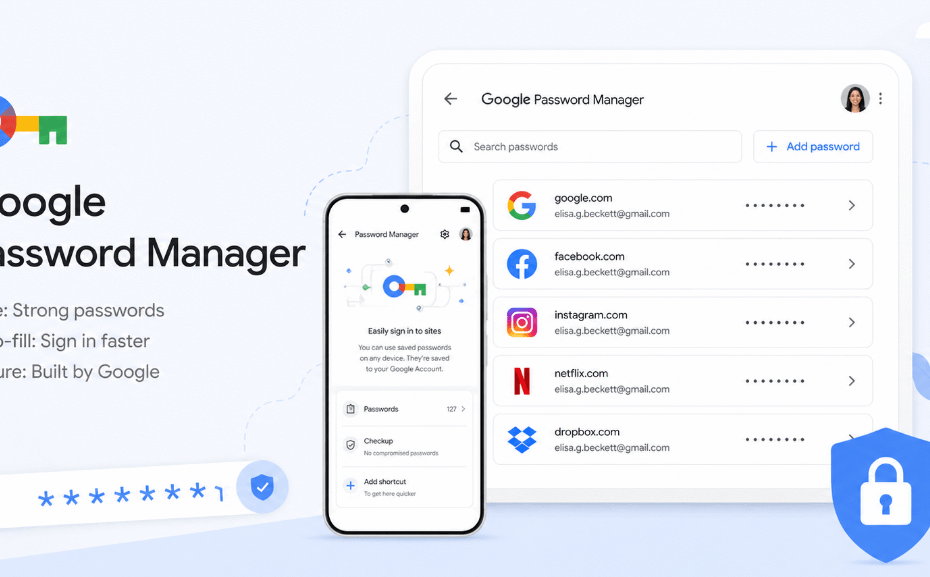
Are you struggling to remember countless logins and wondering if Google Password Manager is the secure solution you need? Managing digital credentials can feel overwhelming.
Fortunately, this comprehensive guide will help you easily navigate, secure, and optimize your accounts across all your favorite devices.
Is Google’s Built-In Credential Tool Safe?
When dealing with sensitive digital security, trust is paramount. Consequently, you might be asking: How secure is this built-in utility?
Google employs rigorous on-device encryption to protect your data. This means your login details are encrypted before they ever leave your device, ensuring that even Google cannot read your sensitive information.
However, the tool is only as secure as your primary Google Account. To maximize your safety, you must enable Two-Factor Authentication (2FA). Furthermore, integrating hardware security keys or biometric authentication will significantly reinforce your digital defenses.
In a recent expansion of these defenses, Google now requires biometric authentication (like Windows Hello or macOS Touch ID) directly on your desktop before it autofills any credential.
Furthermore, it utilizes WebAuthn Level 3 standards, including the advanced Signal API, to ensure your passkeys remain perfectly synchronized with server-side security protocols. For more details on underlying security infrastructure, you can explore the Google Safety Center.
How to Use Google Password Manager
To get the most out of this built-in service, you must configure it correctly across all your operating systems. Follow these step-by-step guides to activate autofill seamlessly.
On Desktop (Chrome for Windows & Mac)
First, you need to ensure Chrome is actively capturing your new logins.
- Open your Chrome browser.
- Click your Profile Icon in the top right corner.
- Select the Passwords and autofill (with icon looks like a small key).
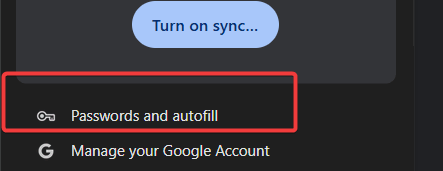
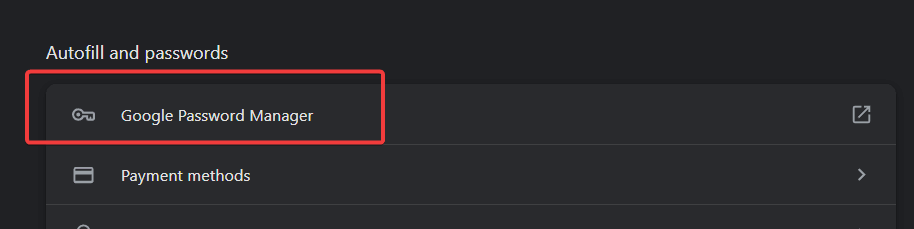
- Click on Google Password Manager.
- Click on Settings on left-navigation.
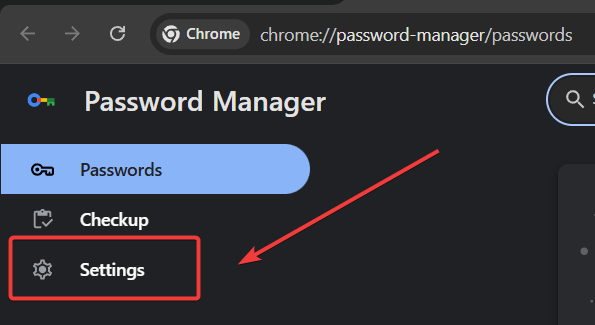
- Toggle on Offer to save passwords and save passkeys and Sign in automatically.
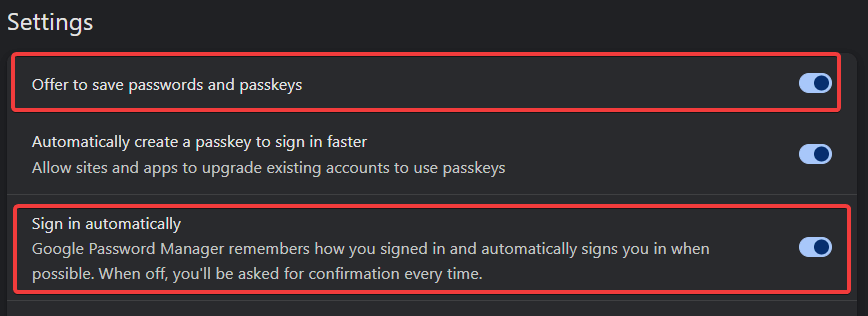
- Log into any website, and Chrome will actively prompt you to save the new credentials.
On Android Devices
The method for Android devices, almost identical. Below are the steps.
- Click your Profile Icon in the top right corner.
- Find Passwords and autofill section.
- Click on Google Password Manager.
- Click on Settings.
- Toggle the switch Offer to save passwrds and Auto sign-in.
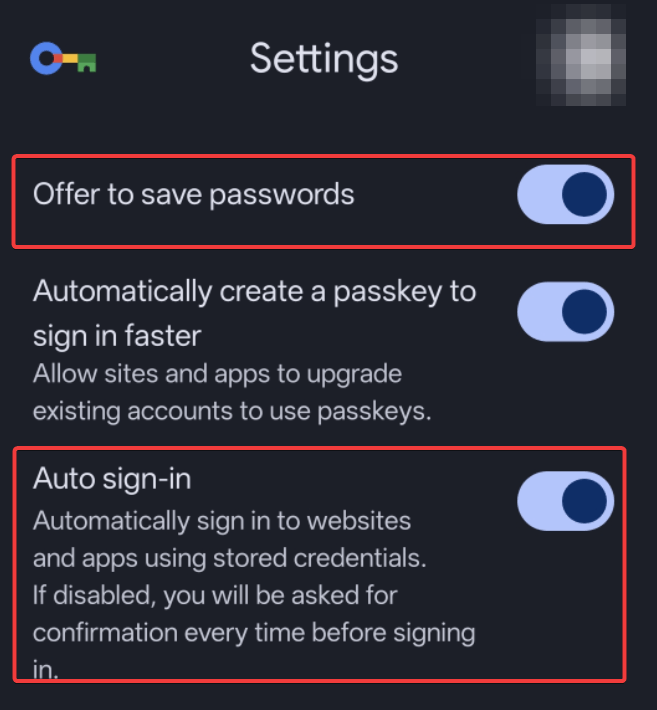
- Next time you open an app, the keyboard will automatically suggest your saved login details.
On iPhone & iPad (iOS)
Even if you use Apple’s ecosystem, you can still sync your Chrome data directly to your iOS device.
- Download and install the Chrome app from the App Store.
- Open your iPhone Settings and tap Passwords.
- Select Password Options.
- Under the “Allow Filling From” section, check the box next to Chrome.
- You can now use your synced credentials inside Safari and other iOS applications.
How to Manually Add Logins to Your Vault
Sometimes, the automatic prompt simply fails to trigger when you create a new account. Instead of losing those credentials, you can quickly input them manually.
- Navigate to your vault via chrome://settings/passwords or the Chrome settings menu.
- Click the blue Add button located next to your saved passwords list.
- Type in the website URL, your username, and your password.
- Use the newly added Notes section to include security questions or PIN codes associated with the account.
- Click Save, and the login will instantly sync across your ecosystem.
How to View, Edit, and Delete Saved Logins
Occasionally, you will need to retrieve a hidden login to use on a different device.
- Navigate to your security vault via chrome://settings/passwords.
- Use the search bar to find the specific website.
- Click the Right Arrow next to the website name.
- Click the Eye Icon to reveal the hidden text. (Note: You will be prompted to enter your computer’s system PIN or biometric scan to prove your identity).
- Use the adjacent buttons to Edit or Delete the entry permanently.
Core Features You Should Be Using
Beyond simple storage, this platform offers robust cybersecurity features designed to keep your identity safe.
Generating Strong Credentials
Creating unique, complex logins for every website is critical. Whenever you register for a new account in Chrome, simply click the password field and select Suggest strong password. The system will automatically generate a randomized, 15-character string and sync it to your vault.
Using Password Checkup
Data breaches happen daily. Therefore, running regular audits is essential.
- Navigate to your vault settings.
- Click on Checkup.
- Wait for the system to scan your database against known internet breaches.
- Review the results. The system will categorize your accounts into compromised, reused, and weak credentials. Update any compromised accounts immediately. To make this easier, Chrome has rolled out a One-Click Automatic Password Change feature. For supported websites, Chrome will navigate the site and automatically generate and replace the compromised password entirely behind the scenes, saving you the hassle of manual resets.
Transitioning to Passkeys
The cybersecurity industry is rapidly moving away from traditional text-based logins. Passkeys allow you to log into websites using your device’s fingerprint or face scan. Google’s tool natively supports storing and syncing passkeys, aligning with the latest standards set by the FIDO Alliance.
Sharing Credentials with Family Members
If you manage shared household accounts—like streaming services or utility bills—you no longer need to send sensitive logins via unencrypted text messages. If you are part of a Google Family Group, you can securely share an account directly from your vault. Simply select the specific login, click the Share icon, and choose the family member. The system will securely transmit the credential directly to their vault.
Creating a Dedicated Home Screen Shortcut
Many users prefer the feel of a standalone app. You can easily create a dedicated shortcut for immediate access without opening your full browser.
- On Android: Rather than digging through system menus, Google has officially launched a standalone Google Password Manager app directly on the Play Store. Downloading this dedicated app provides immediate access to your vault and features a modernized “Material 3 Expressive” interface for much faster searching and filtering. Alternatively, you can still open device settings, go to Google > Password Manager, tap the Settings gear icon, and select Add shortcut to your home screen.
- On Desktop: Visit passwords.google.com in Chrome, click the three-dot menu in the top right, hover over Save and share, and select Install page as app or Create shortcut. This places a dedicated icon on your computer’s taskbar or desktop.
Importing and Exporting Your Data
If you are transitioning between different software tools, data portability is crucial.
- To Export: Open your vault settings, click the three-dot menu next to “Saved Passwords,” and select Export. This generates a .CSV file containing your data. Keep this file heavily guarded.
- To Import: In the same settings menu, select Import and upload a .CSV file from another browser or dedicated software vault. Pro Tip: Google officially limits your vault storage to a maximum of 10,000 total passwords, and you can only import up to 3,000 passwords per .CSV file. If your previous vault exceeds this limit, you must split your list into multiple files before importing.
Google Password Manager vs. Dedicated Alternatives
Is this free service enough, or should you pay for a standalone vault? Understanding the differences helps you make an informed decision.
| Feature | Google’s Built-in Tool | Dedicated Vaults (e.g., Bitwarden, 1Password) |
|---|---|---|
| Price | 100% Free | Usually $3 to $5 per month |
| Cross-Browser Support | Best in Chrome | Universal (Firefox, Safari, Edge) |
| Secure Notes Storage | Limited | Yes (Advanced Vaults) |
| Family Sharing | Yes (via Google Family) | Advanced family hubs available |
| Security Architecture | On-device encryption | Zero-knowledge architecture |
Ultimately, if you live entirely within the Chrome and Android ecosystems, the built-in option is incredibly reliable. However, if you need to securely share logins with family members or store private notes, a paid alternative might serve you better.
Frequently Asked Questions (FAQ)
Where are my saved credentials actually stored?
They are stored securely in the cloud, linked directly to your primary Google Account. They are encrypted so that only your authorized devices can decrypt and view them.
Can anyone see my logins if they borrow my computer?
No. If someone tries to view or copy your stored details in Chrome, the system will actively force them to enter the computer’s administrator password, PIN, or biometric scan first.
Why are my passwords not syncing across my devices?
If your credentials aren’t updating, first ensure you are signed into the exact same Google profile on both devices. Next, open Chrome’s settings, navigate to Sync and Google services, and verify that the toggle for Passwords is actively turned on.
What happens if I forget my primary account password?
If you lose access to your core account, you lose access to your entire synced vault. It is highly recommended to set up robust account recovery options, including a backup email address and offline backup codes.
Is Google Password Manager safe to use?
Yes, it is safer than it used to be thanks to local encryption and integration with system security like macOS Keychain, but many experts still recommend standalone password managers for maximum security
Can malware or infostealers steal my Google passwords?
While modern Chrome uses app-bound encryption to protect your passwords on your hard drive, sophisticated malware can still bypass this to steal passwords from an active, live browser session
Can Google see my saved passwords?
If you use the default settings, your account acts as the key. However, if you enable a “sync passphrase,” it adds zero-knowledge encryption, meaning even Google cannot decrypt or view your passwords
What happens if my Google account gets hacked?
Because Google Password Manager acts as a single point of failure, if someone compromises your Google account, they gain access to all your saved passwords unless you have a sync passphrase enabled
Conclusion
Now that you know how to leverage Google Password Manager, it is time to take control of your digital security. Implement these best practices today to protect your online identity, eliminate weak credentials, and streamline your daily logins. Did you find this guide helpful? Share this post with your friends to help them stay secure, or drop your questions in the comments section below!

IT Security / Cyber Security Experts.
Technology Enthusiasm.
Love to read, test and write about IT, Cyber Security and Technology.
The Geek coming from the things I love and how I look.