

Are you wondering exactly how to create microsoft account profiles to unlock Windows, Outlook, and Xbox Live? Setting up your profile is completely free and takes just minutes.
In this step-by-step guide, we will walk you through exactly what you need to do to get started today.
How To Create Microsoft Account(Desktop & Web)
If you are researching how to create microsoft account logins for a new PC, here is the comprehensive breakdown. Whenever you buy a new computer or subscribe to Microsoft 365, you need this central profile to manage your data.
Step 1: Navigate to the Signup Portal
First, open your preferred web browser and go to the official Microsoft account creation page.
You can choose to use your existing Gmail or Yahoo address. Alternatively, click Get a new email address to claim a fresh @outlook.com or @hotmail.com handle.
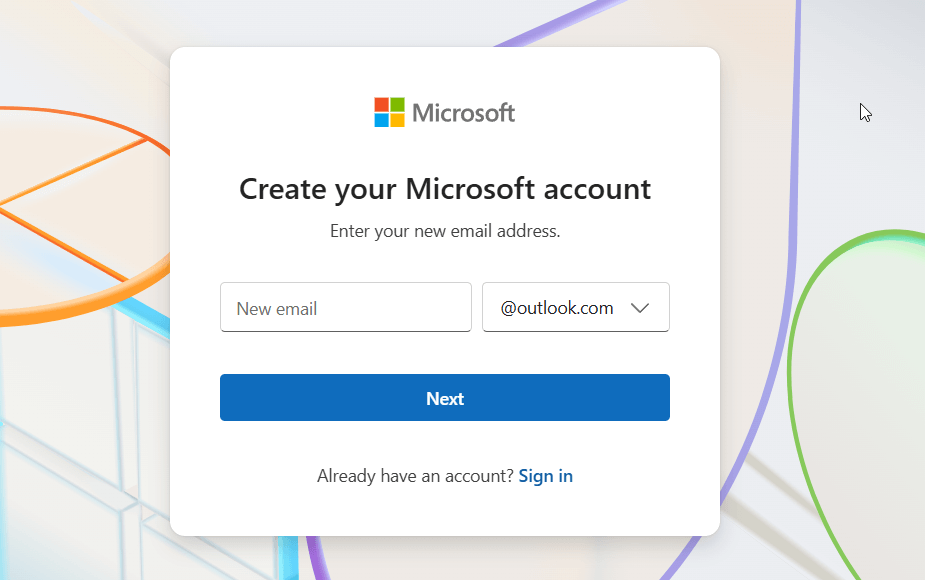
Step 2: Choose Your Email Address and Password
Next, type in your desired username.
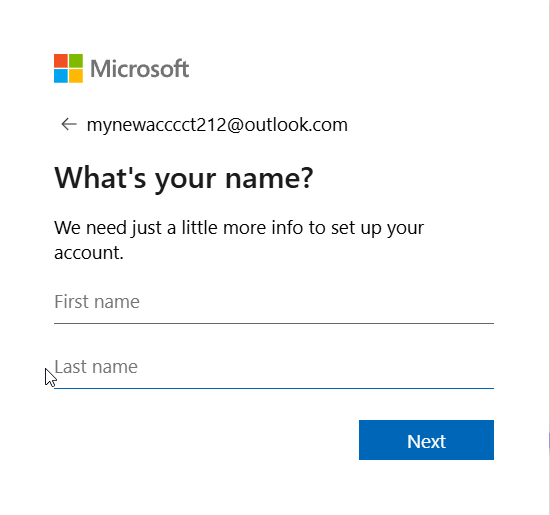
After clicking Next, the system will prompt you to choose a secure password.
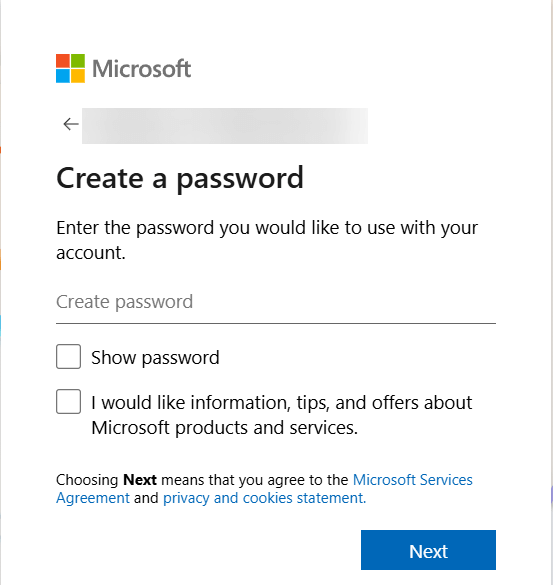
Ensure you use a robust mix of uppercase letters, numbers, and symbols to protect your cloud storage and personal data.
Step 3: Enter Your Demographic Information
Subsequently, Microsoft requires your region and birthdate. They use this data to configure your localized experience and apply age-appropriate safety settings for gaming networks like Xbox Live. Simply select your country from the dropdown menu and input your correct birthdate.
Step 4: Pass the Human Verification (CAPTCHA)
Finally, you must solve a quick puzzle to prove you are an actual human and not an automated bot. Follow the on-screen prompts to rotate an image or identify a brief audio snippet
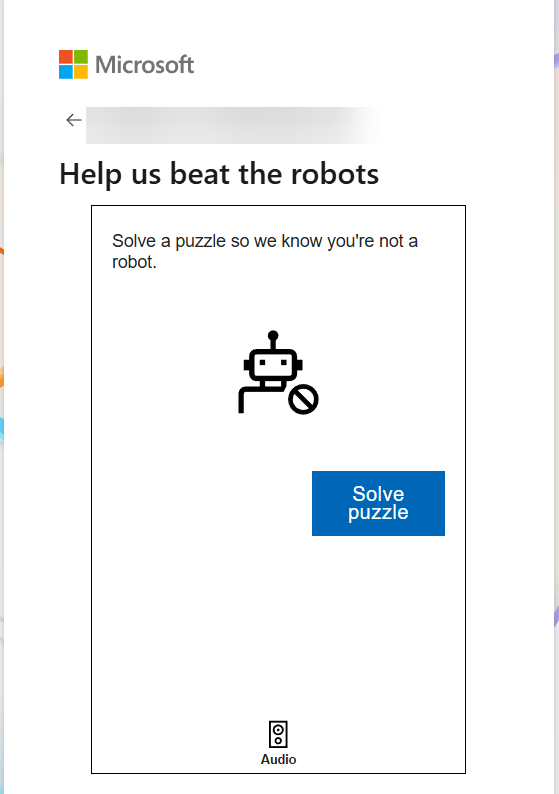
Once you complete this, the system grants you immediate access to your new dashboard and 5GB of free OneDrive storage.
How To Create Microsoft Account Directly Through Windows Settings
Sometimes, you might want to add a new user right from your desktop without opening a web browser. If you are already logged into a PC running Windows 10 or Windows 11, you can seamlessly add a new profile via your system settings.
- Click the Start Menu and open the Settings gear icon.
- Navigate to Accounts, then select Other users (or Family & other users).
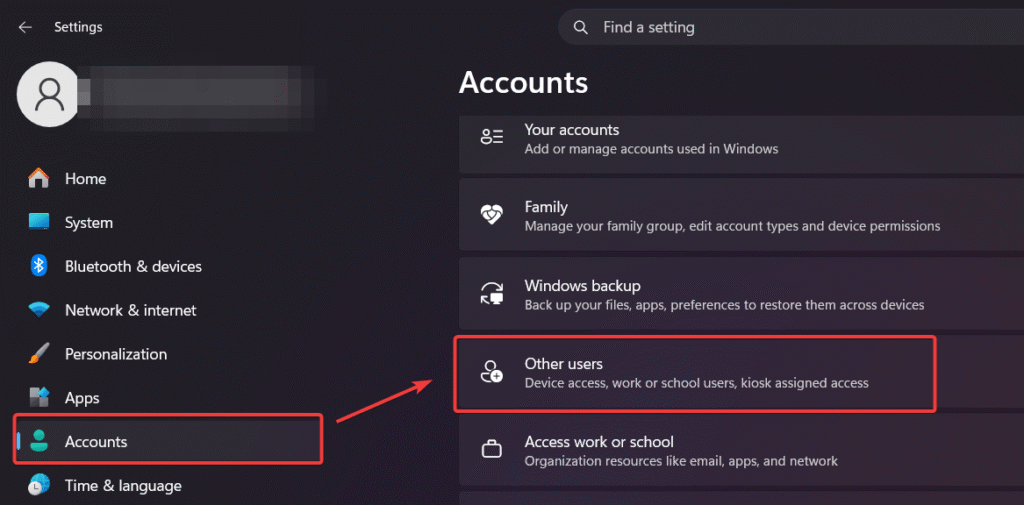
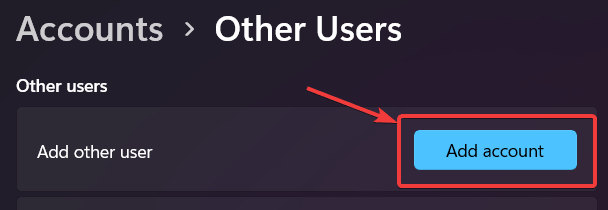
- Click the Add account button next to “Add other user.”
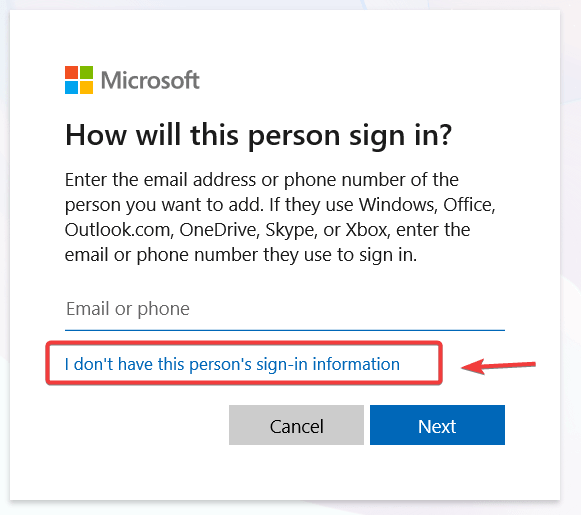
- When the sign-in window appears, click the link that says I don’t have this person’s sign-in information.
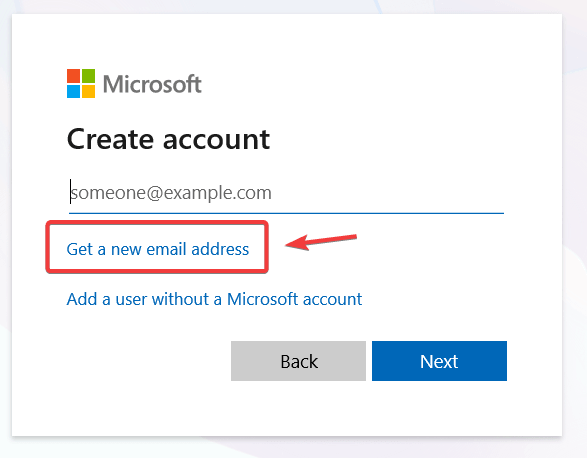
- On the next screen, select Get a new email address or use an existing one, and follow the standard on-screen prompts to finalize the profile.
How To Create Microsoft Account on Mobile (iOS & Android)
Many users ask how to create microsoft account setups directly from a smartphone. Fortunately, the process is incredibly seamless via the mobile application.
Download the official Microsoft Outlook app from the Apple App Store or Google Play Store. Open the app, tap Add Account, select Create New Account, and follow the identical sequence of choosing a username and password.
Securing Your New Account: Recovery and Two-Step Verification
After successfully creating your profile, your immediate next step should be locking it down against hackers. Adding recovery options ensures you never lose access to your important files or emails.
First, navigate to your account dashboard and click on the Security tab. Here, you should immediately add an alternative recovery email address and a personal phone number.
Consequently, if you ever forget your password, Microsoft can send a quick verification code to these backups.
Furthermore, we highly recommend toggling on Two-Step Verification (2FA). By enabling this, even if someone guesses your password, they cannot log in without the secondary code generated by the Microsoft Authenticator app on your phone.
Go Passwordless: The Future of Microsoft Logins
Once your account is created and secured, you can take advantage of Microsoft’s modern “Passwordless” feature. Instead of typing a password every time you log in, you can configure your account to use Passkeys.
By downloading the Microsoft Authenticator app or using Windows Hello (facial recognition/fingerprint), you can completely remove your password from your account settings
This not only makes logging in faster but entirely eliminates the risk of your password being stolen in a data breach.
Master Your Inbox with Account Aliases
Many users mistakenly think they need to create a second Microsoft account if they want a more professional email address later on. This is entirely unnecessary. Microsoft offers a unique feature called “Aliases”.” “.
Inside your account settings, you can add up to 10 different @outlook.com email addresses all tied to your single master account. You can send and receive emails from any of these aliases while keeping all your OneDrive files and Xbox purchases under one roof.
Setting Up a Child Account for Family Safety
If you are a parent setting up a laptop or Xbox for a younger family member, you should not give them a standard adult profile. Instead, create a dedicated child account to monitor screen time and filter inappropriate content.
To do this, log into your own adult profile at family.microsoft.com. Click on Add a family member, then select Create an account for them. The system will guide you through creating a new email address specifically for your child.
Because it is linked to your master profile as part of a “Family Group,” you will gain the ability to set app limits, approve purchases, and enable safe web browsing automatically.
Unlock Free Perks with Microsoft Rewards
Here is a fantastic hidden benefit: simply by creating your profile, you are instantly eligible for the Microsoft Rewards program. Make sure you are signed into your new account when browsing the web via Microsoft Edge or searching via Bing.
You can read our full guide on how to join Microsoft Rewards.
Every search earns you points that you can redeem for real-world rewards, such as Amazon gift cards, Starbucks coffee, or Xbox Game Pass subscriptions. It is one of the best free incentives attached to the ecosystem.
Microsoft Account vs. Local Account: Which Do You Need?
If you are setting up a Windows 11 PC, you might wonder whether to use an online profile or a traditional offline one.
- Microsoft Profile: Automatically syncs your passwords across devices, securely backs up your BitLocker recovery keys, and grants seamless access to AI tools like Copilot.
- Local Profile: Exists exclusively on that specific computer. Therefore, it offers slightly more privacy but entirely lacks cloud synchronization and easy password recovery options.
For most modern users, an online profile provides a significantly superior, connected experience.
Troubleshooting Common Signup Errors
Sometimes, technology refuses to cooperate. If you run into annoying issues while figuring out how to create microsoft account access, try these fixes below:
- Error: “Someone already has this email address”
This means your desired username is already taken by another user. Try adding numbers to the end, or use an underscore. Alternatively, you can use a completely different variation of your name. - Not receiving the phone verification code
If your two-factor authentication (2FA) text message fails to arrive, check your cellular connection. Alternatively, choose the Use a different verification method option to receive an automated voice call instead. You can find more comprehensive help on the official Microsoft Support page.
Beware the 2-Year Inactivity Policy
Before you create your account and forget about it, be aware of Microsoft’s strict inactive account policy.
If you do not sign into your Microsoft account at least once every two years, Microsoft reserves the right to permanently delete it, taking all your associated OneDrive files, emails, and digital purchases with it.
Make a habit of logging in occasionally to keep the account active.
Frequently Asked Questions (FAQs)
Is setting up a Microsoft profile completely free?
Yes, it is entirely free. Furthermore, registering gives you immediate access to the free web-based versions of Word and Excel, plus 5GB of OneDrive cloud storage.
Can I use my existing Gmail address to sign up?
Absolutely. Instead of creating a brand new @outlook.com email, just type your current Gmail or Yahoo address into the initial signup box. Microsoft will simply send a secure verification code to that specific inbox to confirm your ownership.
Do I need an online profile to use Word or Excel?
Yes and no. You absolutely need one to use the free web-based Office apps or to activate a modern Microsoft 365 subscription. However, older standalone offline versions of Office (such as Office 2019) do not strictly require continuous cloud sign-in.
Why do I get a “Something went wrong” error when creating a Microsoft account in Google Chrome?
This error often occurs due to rendering engine incompatibilities when using third-party email providers like Gmail. Switching to the Microsoft Edge browser usually resolves the session persistence issue and allows the account creation to complete
What does the “Too many requests for code today” error mean and how do I fix it?
This error is a deliberate security throttle triggered when you request verification codes too frequently. You must wait a full 24 hours without making any attempts, as any retries during the block will reset the timer indefinitely
Can using a VPN prevent me from creating a Microsoft account?
Yes, Microsoft evaluates network reputation and often interprets the high density of requests from VPN exit nodes as automated bot attacks. Turning off your VPN or switching to a mobile hotspot provides a fresh IP address and bypasses these network-level blocks.
How can I bypass creating a Microsoft account during a Windows 11 installation?
ou can open the Command Prompt (Shift+F10) during the network setup phase and type OOBE\BYPASSNRO. This restarts the computer and provides an “I don’t have internet” option, allowing you to create a traditional local offline account
Conclusion
In summary, securing your digital workspace starts with a unified profile. Whether you need reliable access to cloud storage, gaming networks, or essential productivity tools, understanding exactly how to create microsoft account logins empowers you to utilize the entire ecosystem seamlessly.
Implement these steps today to claim your personalized email address, share this post with anyone buying a new computer, and leave a comment below if you have any questions!

IT Security / Cyber Security Experts.
Technology Enthusiasm.
Love to read, test and write about IT, Cyber Security and Technology.
The Geek coming from the things I love and how I look.