


Are you trying to do a clean installation or transfer your license and need to know how to find your Are you trying to do a clean installation or transfer your license and need to know how to find your Windows 11 or Windows 10 product key?
Whether it’s stored in your computer’s hardware or linked to your account, this guide will show you simple ways to locate your product key.
Before You Start: Check Your Current Activation Status
Before you begin your search, it’s worth checking your current Windows activation status. You might discover that your copy of Windows has a digital license and you don’t need a product key for reinstallation at all.
- Open the Settings app by pressing Windows key + I.
- In the System tab, scroll down and click on Activation.
- Look at the Activation state. If it says, “Windows is activated with a digital license linked to your Microsoft account“, you are all set. You won’t need to enter a product key when you reinstall Windows on the same PC.

Windows not activated? Read our article on how to activate windows with product key for Windows 11 & 10.
How To Find Windows 11 & 10 Product Key Easily
Method 1: Find Your Windows Product Key Using Command Prompt (CMD)
Open command prompt as administrator.
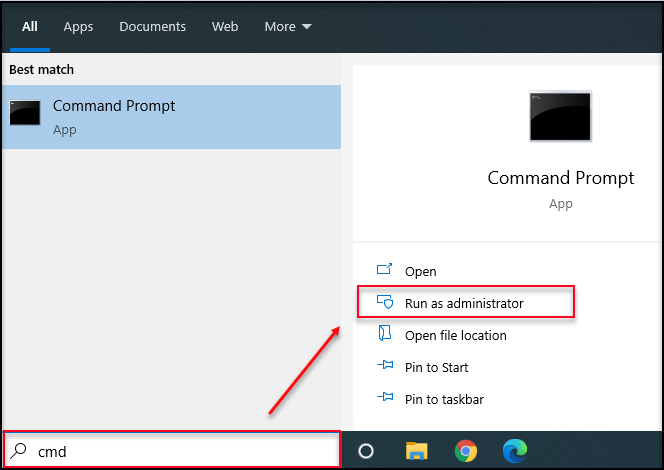
Enter below command and press Enter
wmic path softwarelicensingservice get OA3xoriginalproductkey
Almost instantly, your 25-character Windows 11/10 product key should appear directly below the command.

You can now highlight it and press Ctrl+C to copy it.
Tips: The output results may show blank. Read our article on why command “wmic path softwarelicensingservice get oa3xoriginalproductkey” blank result.
Method 2: Use Windows PowerShell to Reveal Your Key
Alternatively, you can use PowerShell, a more modern command-line tool. This method achieves the same result by querying the same firmware location, just with a slightly different command syntax.
If you need to find a Windows key and the first method didn’t work, this is an excellent second option.
- Open the Start Menu, type powershell, right-click on Windows PowerShell, and select Run as administrator.
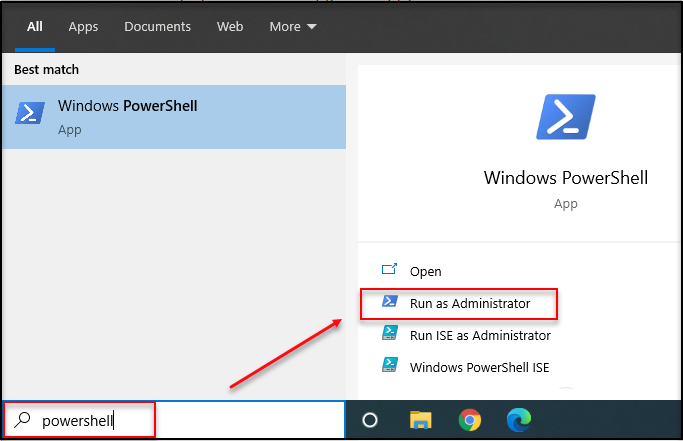
- Then, copy and paste this specific command into the PowerShell window and press Enter to display your product key:
Get-Wmiobject SoftwareLicensingService | Select OA3xOriginalProductKey
- It will show your product key as below:
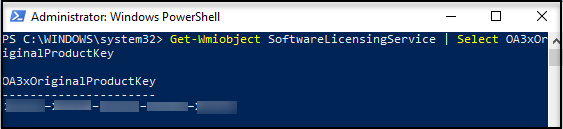
Method 3: Check the Windows Registry
If you’re comfortable with more advanced tools, the Windows Registry also stores product key information. You can view it using the Registry Editor, but be careful, as making incorrect changes can cause system instability.
Warning: Do not edit anything in the Registry Editor unless you are certain. This method is for viewing only.
- Press the Windows key + R to open the Run dialog box. Type regedit and press Enter.
- Navigate to the following path by pasting it into the address bar:
HKEY_LOCAL_MACHINE\SOFTWARE\Microsoft\Windows NT\CurrentVersion\SoftwareProtectionPlatform - Look for the entry named BackupProductKeyDefault. The 25-character key in the “Data” column is the value you need.

Method 4: Look for a Physical Key or Digital Receipt
Sometimes the solution isn’t on your PC at all. If you purchased Windows separately, this is how to find the product key.
On the Computer’s Case
If your PC came with Windows pre-installed, check for a Certificate of Authenticity sticker on the tower or the underside of the laptop. This sticker includes the 25-character product key.
In the Retail Box or Email
If you bought a physical copy of Windows, the key is usually on a card inside the box that Windows came in.

If you bought Windows from an online retailer, search for the confirmation email to find the product key in the confirmation message.
For Digital Purchases: Check Your Microsoft Account
If you purchased Windows 11 directly from the Microsoft Store online, your key is permanently logged in your order history.
- Go to the Microsoft account order history page and sign in.
- Locate your Windows purchase and you will find an option to view the product key.
Method 5: Use a Reputable Third-Party Tool (The Easy Way)
If you’re not comfortable with commands and a little technical work, a simple third-party graphical application can do the work for you. We recommend using ShowKeyPlus, a trusted tool available directly from the Microsoft Store.
- Open the Microsoft Store app on your PC.
- In the search bar, type ShowKeyPlus and press Enter.
- Click “Get” to download and install the application.

- Launch ShowKeyPlus. The application will immediately display your product key information, including the Installed Key and the original OEM Key (if available).

Method 6: Using a Visual Basic Script (VBS)
For one final technical method, you can use a small VBScript to show your Windows product key in a simple pop-up window.
- On search console, search for notepad and click on run as administrator
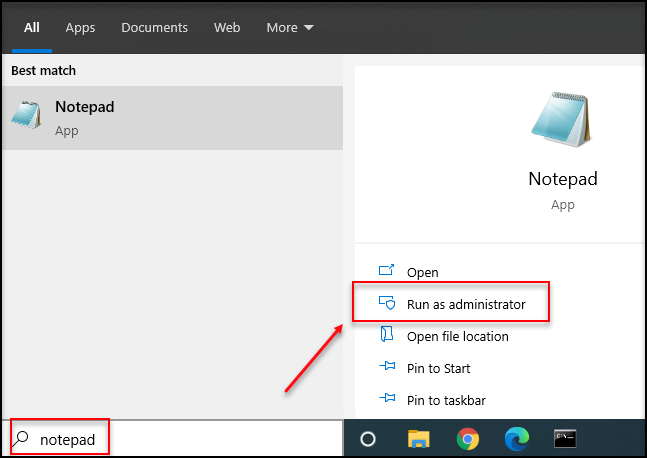
- Copy and paste following script into the notepad.
Set WshShell = CreateObject(“WScript.Shell”) MsgBox ConvertToKey(WshShell.RegRead(“HKLM\SOFTWARE\Microsoft\Windows NT\CurrentVersion\DigitalProductId”)) Function ConvertToKey(Key) Const KeyOffset = 52 i = 28 Chars = “BCDFGHJKMPQRTVWXY2346789” Do Cur = 0 x = 14 Do Cur = Cur * 256 Cur = Key(x + KeyOffset) + Cur Key(x + KeyOffset) = (Cur \ 24) And 255 Cur = Cur Mod 24 x = x -1 Loop While x >= 0 i = i -1 KeyOutput = Mid(Chars, Cur + 1, 1) & KeyOutput If (((29 – i) Mod 6) = 0) And (i <> -1) Then i = i -1 KeyOutput = “-” & KeyOutput End If Loop While i >= 0 ConvertToKey = KeyOutput End Function
- Click on file tab and choose Save as.
- Once a save as window popup, rename the file name to myfilename.vbs. Choose All Files for the Save as type, and choose ANSI for the encoding.

- Then click save. Locate the vbs file, then double-click on it to run the script.

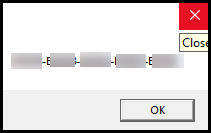
- A messagebox will popup with product key.
Is Your Key Actually a Digital License?
In many modern cases, especially if you upgraded to Windows 11 from a genuine copy of Windows 10, you may not have a traditional product key. Instead, your copy of Windows uses a digital license.
A digital license is linked directly to your Microsoft account. Consequently, when you’re reinstalling Windows, the operating system automatically activates itself as soon as you log in. You can learn more from the official Microsoft support page on Windows activation.
Frequently Asked Questions (FAQ)
What do I do if none of these methods show a key?
If no key appears after using Command Prompt or PowerShell, it almost certainly means your computer uses a digital license. As long as you log in with the same Microsoft account used for the original activation, your OS will reactivate automatically.
Can I reuse my Windows 11 product key on another computer?
It depends on your license type. A “Retail” license (one you bought separately) can be transferred. However, an “OEM” license (one that came pre-installed on PCs from a manufacturer like Dell or HP) is tied to that specific hardware and cannot be transferred. Similarly, a “Volume” license, often managed via a Volume licensing agreement or MSDN subscription, is not transferable for personal use.
How can I check if my license is Retail or OEM?
Open Command Prompt as an administrator and type slmgr /dli. A window will pop up. The description will tell you if your license channel is OEM, Retail, or Volume.
What is a generic Windows 11 key, and should I use one?
A generic key is an installation key from Microsoft that lets you install a specific version of Windows without activating it. It does not grant you a genuine license. You will still need a valid product key to activate Windows after installation. It is safe to use for installation, but it is not a “free” product key for Windows.
Is it safe to use third-party product key finder software?
Be very cautious. Many free programs are bundled with malware. Therefore, it is always safer to use trusted tools from the Microsoft Store or the built-in Windows operating system methods described in this guide.
Conclusion: Your Product Key, Found and Secured
You can now find your Windows 11 product key with confidence. We’ve shown you how to check your digital license and use everything from the Command Prompt to the Registry Editor to find the Windows product key. For most modern users, the license tied to your Microsoft account makes the process even simpler.
Now that you have your Windows 11 product key, be sure to save it in a secure location.
Did this comprehensive guide help you? Share it with anyone else trying to learn how to find their key, and let us know in the comments if you have any other questions.

IT Security / Cyber Security Experts.
Technology Enthusiasm.
Love to read, test and write about IT, Cyber Security and Technology.
The Geek coming from the things I love and how I look.