

Learning how to update Microsoft Edge is essential for keeping your browsing secure and fast. While the browser usually handles this automatically, glitches happen.
This guide shows you the exact steps to force a manual update and verify you have the latest security patches immediately.
- How to Update Microsoft Edge Manually on Windows
- How to Update Microsoft Edge on Mac
- How to Update Microsoft Edge on Linux
- How to Update Edge on Mobile (Android & iOS)
- Advanced Tip: Updating Browser Components (The Secret Fix)
- Why Should You Check for Updates Manually?
- How to Get New Features Before Everyone Else (Edge Insider)
- Does updating Microsoft Edge delete my data?
- Troubleshooting
- Frequently Asked Questions (FAQs)
- Conclusion
How to Update Microsoft Edge Manually on Windows
For Windows 10 and Windows 11 users, the process is built directly into the browser settings. Follow these step-by-step instructions to ensure your software is current.
- Launch the Browser: Open Microsoft Edge on your PC.
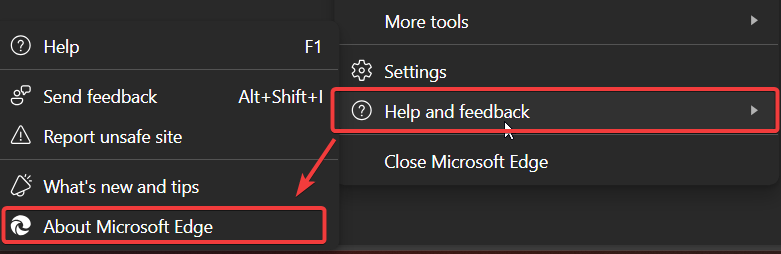
- Open the Menu: Click the Settings and more icon (represented by three horizontal dots •••) located in the top-right corner of the window.
- Navigate to Help: Hover your mouse cursor over Help and feedback near the bottom of the list.
- Select About: Click on About Microsoft Edge.
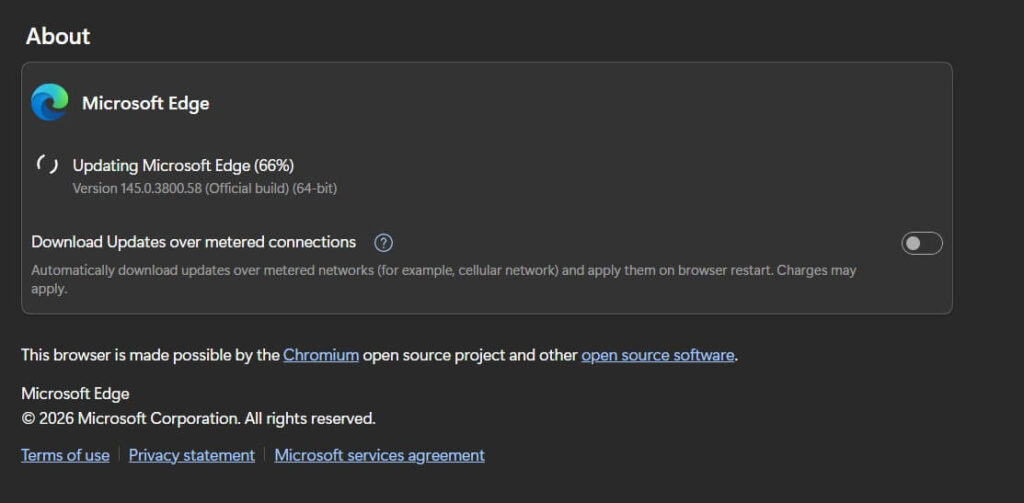
- This action immediately triggers a scan. You will see a spinning circle or a progress bar as Edge contacts Microsoft servers.
- Restart: Once the download reaches 100%, the button will change to Restart. Click it to relaunch the browser and apply the changes.
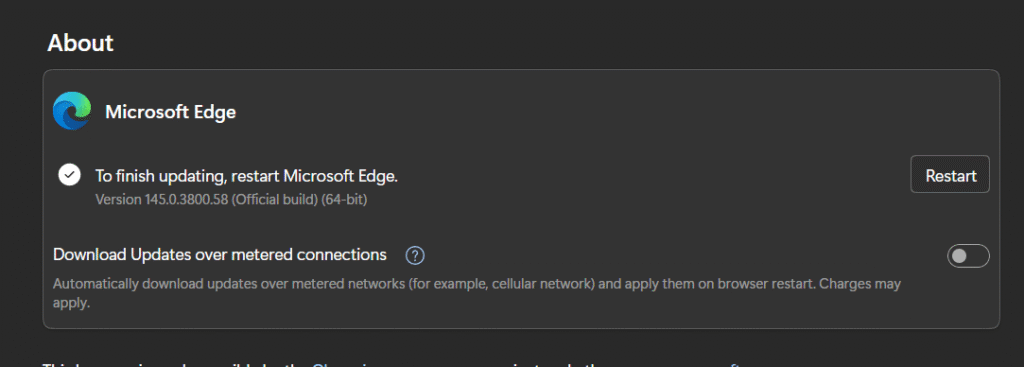
Note: Your tabs will be restored automatically after the restart.
How to Update Microsoft Edge on Mac
The interface on macOS is slightly different than on Windows. If you are using an iMac or MacBook, follow this path:
- Open Microsoft Edge.
- Click Microsoft Edge in the Apple Menu bar at the top-left of your screen.
- Select About Microsoft Edge from the dropdown menu.
- The browser will automatically check for updates. If a new version is available, it will download.
- Click Restart to finalize the installation.
How to Update Microsoft Edge on Linux
With Edge now widely used on Linux distributions, keeping it updated is just as critical.
- GUI Method: The steps are identical to the Windows method (Menu > Help and feedback > About Microsoft Edge).
- Terminal Method: If you prefer the command line (for Ubuntu/Debian), run the following commands: codeBash
sudo apt update sudo apt upgrade microsoft-edge-stable
How to Update Edge on Mobile (Android & iOS)
Mobile browsers update differently than desktop versions. They rely on your device’s app store settings.
- On Android: Open the Google Play Store, search for “Microsoft Edge,” and tap the Update button if it appears.
- On iOS (iPhone/iPad): Open the App Store, tap your profile icon, scroll down to available updates, and tap Update next to Microsoft Edge.
Advanced Tip: Updating Browser Components (The Secret Fix)
Sometimes, your browser says it is up to date, but streaming services like Netflix or Spotify still fail. This happens because the components (like Adobe Flash’s successor, Widevine DRM) are outdated.
You can force-update these individual tools without reinstalling the browser:
- Type edge://components into your address bar and hit Enter.
- Locate Widevine Content Decryption Module or Trust Protection Lists.
- Click the Check for update button next to the specific component.
- This often fixes playback errors and security glitches that a standard browser update misses.
Why Should You Check for Updates Manually?
Although Microsoft Edge is built on the Chromium engine and is designed to auto-update when you close and reopen the browser, “sleeping” tabs or keeping the browser open for days can delay this process.
Manually checking your version ensures you aren’t vulnerable to zero-day security threats and that you have access to the newest features, such as the latest AI Copilot integrations.
Visual Indicators: What Do the Menu Colors Mean?
Sometimes, you don’t even need to open the settings to know an update is waiting. If the three dots (•••) icon changes color, Edge is trying to alert you:
- 🟢 Green: An update has been available for less than 2 days.
- 🟠 Orange: An update has been pending for about 4 days.
- 🔴 Red: An update has been pending for at least a week. Restart immediately.
How to Get New Features Before Everyone Else (Edge Insider)
If you want to use features before they are released to the public, you can switch from the “Stable” channel to the “Insider” channels.
- Beta Channel: Updates every 4 weeks (Most stable).
- Dev Channel: Updates weekly (Good balance).
- Canary Channel: Updates daily (For developers/experts).
You can download these versions separately from the Microsoft Edge Insider website. They install alongside your standard Edge browser, so you don’t lose your main setup.
Does updating Microsoft Edge delete my data?
No — updating Microsoft Edge generally does not delete your browsing data. When you follow official update methods (manual update via Settings or automatic updates), your bookmarks, history, saved passwords, cookies, and extensions remain intact.
Key points about updates and your data:
- Profile data is preserved: Edge stores profile information (favorites, passwords, history) in your user profile. Standard updates replace application files without removing profile data.
- Sync provides extra safety: If you use a Microsoft account and have Sync enabled, your bookmarks, passwords, and settings are backed up to the cloud. This makes recovery easy if something unexpected occurs.
- Extensions and settings: Extensions and most settings persist after an update. Rarely, an extension may need to be re-enabled or updated for compatibility.
- Edge updates vs. reinstall: A normal update is safe. A full uninstall that removes user data or a manual deletion of your profile folder can remove data — but the update process itself does not do this.
Precautions and troubleshooting:
- Before major changes: If you plan to reinstall Edge or make major system changes, export your favorites and ensure Sync is enabled for passwords and settings.
- If data appears missing after an update: Check that you’re signed in to the correct profile (top-right profile icon). Verify Sync is on (Settings > Profiles > Sync). Restart Edge and your computer. If needed, check Windows Update and run a system restart; sometimes pending updates affect profile loading.
In short: updating Microsoft Edge should not delete your data, but enabling Sync and exporting critical items before making major changes is a good precaution.
Troubleshooting
Microsoft Edge not updating?
Sometimes, you might follow the instructions on how to update Microsoft Edge but encounter an error code. Here are the most common semantic fixes:
1. Check for Metered Connections
Windows often pauses downloads on “metered” networks to save data.
- Fix: Go to Windows Settings > Network & internet > Wi-Fi. Click your connection properties and toggle Metered connection to “Off.”
2. Use the “Repair” Function (Windows Only)
Before downloading files, try the built-in repair tool.
- Fix: Close the browser. Go to Windows Settings > Apps > Installed Apps. Find Microsoft Edge, click the three dots next to it, select Modify, and then click Repair. This forces a fresh update without deleting data.
3. Common Update Error Codes
If you see a specific code, here is what it means:
- Error 0x80040154: The updater service is blocked. Try disabling your firewall briefly.
- Error 0x800421f7: The server is busy. Wait 15 minutes and try again.
- Error 3 or 11: An update check failed. Restart your computer and check your internet connection.
4. Download the Offline Installer
If the internal updater is completely broken, you can force an override.
- Fix: Visit the official Microsoft Edge Business download page, select your version, and run the installer manually. This repairs the current installation without deleting your bookmarks.
Why is the Update Option Grayed Out or Missing?
If you follow the steps above but see a message saying “Managed by your organization” or the update options are grayed out, your IT department has locked this feature using Group Policy.
In this scenario, you cannot force an update manually. However, you can trigger a system-wide check:
- Open the Windows Start menu and type “Check for updates”.
- Click the button to scan for Windows Updates.
- Often, enterprise versions of Edge are bundled with these system updates rather than the browser’s internal menu.
Frequently Asked Questions (FAQs)
Q: Does Microsoft Edge update automatically?
Yes, by default, Edge downloads updates in the background. However, these updates only apply when you restart the browser. If you keep your browser open for days, you will need to update manually using the steps above
Q: Will I lose my bookmarks or tabs if I update?
No. Updating simply patches the software files. Your personal data, including bookmarks, saved passwords, and open tabs, will be restored exactly as you left them after the restart.
Q: How do I know if I have the latest version?
Go to Settings > About Microsoft Edge. If you see the phrase “Microsoft Edge is up to date,” no further action is required.
Is Updating Microsoft Edge free?
Yes. Updating Microsoft Edge is free—Microsoft provides automatic updates via Windows Update or Edge’s built-in updater on macOS and Linux.
What should I do if my Edge profiles and sessions disappeared after an update?
Your data likely still exists in %LocalAppData%/Microsoft/Edge/User Data; you can “trick” Edge into seeing them again by swapping folder names of a new profile with your old one
How do I rollback Microsoft Edge to a previous version
You can roll back manually using an MSI installer with the command ALLOWDOWNGRADE=1 or by using Group Policy to set a “Target version override”
Conclusion
Keeping your browser current is the easiest way to protect your personal data and enjoy a faster web experience. Now that you know how to update Microsoft Edge manually on any device—and even how to update hidden components—we recommend checking your version menu once a month to ensure everything is running smoothly.
If this guide helped you resolve a glitch or secure your browser, please share it with your team or leave a comment below!

IT Security / Cyber Security Experts.
Technology Enthusiasm.
Love to read, test and write about IT, Cyber Security and Technology.
The Geek coming from the things I love and how I look.